
Notification
Go to Home All Tools Compare Glossary Blog Contact

Drawing Tablet & Stylus Test

Test your drawing tablet or stylus online. Check pen pressure, tilt, eraser, barrel buttons, hover and pointer coordinates with this free browser-based diagnostic.

Best on Desktop
Device Status Waiting for stylus
Pointer Type Waiting
Pressure —
Tilt (2-Axis) —
Hover —
Buttons —
Eraser Nib —
Step 1 of 7

1. Pen Detection

Mode:
Move your stylus over the test area, then touch the surface.
TESTING

Use your stylus or pen over the test area to begin.

Draw a line or bring the pen near the surface.

Pointer: Waiting Contact: Idle Pressure: 0.000

Live Pen Telemetry

Active
Pointer Type Waiting
Contact State Idle
Pressure 0.000
Tilt X / Y —
Browser-Observed Pressure 0.00 – 0.00
Pressure Over Time 0 samples
Tilt & Rotation: —
Tilt X / Y: — / —
Buttons: None
Coords: —
DRAWING TABLET TEST RESULT

Drawing Tablet Diagnostic Results

Overall Verdict ⏳ In Progress (0 of 7 Steps)

Waiting for pointer input — move your stylus or mouse over the canvas

Once you bring your pen or pointer over the test surface, an instant plain-language hardware diagnosis will appear here.

✓ 0 Passed ⚠ 0 Warned — 0 Unsupported ✕ 0 Failed

Smart Diagnosis

Auto-evaluated
What Happened

Awaiting pointer input on the test canvas.

Likely Cause

No stylus or mouse events have been received in this browser session.

Recommended Action

Draw or hover your stylus over the canvas above to begin.

Test Results

Advanced Environment Details

Drawing Tablet Driver Troubleshooting Guide

Reference

Pressure Constant at 0.50 (Flatline)

If strokes draw but pressure never varies:

  • Enable Windows Ink: Open your tablet driver (Wacom Center, Huion Tablet, or XP-Pen) and turn ON "Windows Ink".
  • Disable Mouse Mode: Ensure tracking is set to "Pen / Absolute" mode.

Tilt Reports 0° / Unsupported

If Tilt X/Y stay at 0°:

  • Hardware Check: Confirm your stylus model has physical gyro tilt hardware (many entry pens do not).
  • Update Driver: Install latest manufacturer driver.

Pen Detected as "Mouse"

If your pen registers as mouse clicks:

  • Wintab vs PointerEvents: Enable Windows Ink API passthrough in driver.
  • Restart Service: Restart the tablet driver background service.
Tablet Advisor

AI Drawing Tablet & Stylus Advisor

Ask AI
Education

Complete Guide to Drawing Tablet & Stylus Browser Diagnostics

01

Understanding W3C Pointer Events for Styluses

Modern web browsers unify mouse, touch, and pen interactions into the Pointer Events specification, exposing extended properties like pressure, tiltX, tiltY, and twist when reported by OS drivers.

02

How Normalized Pen Pressure Works (0.00 to 1.00)

Rather than raw hardware force values, browsers represent tip pressure as a normalized scale from 0.00 (no contact) to 1.00 (maximum force), mapping physical pressure steps to brush dynamics.

03

Two-Axis Pen Tilt (Tilt X & Tilt Y)

Tilt values specify the inclination angle (-90° to +90°) of the stylus shaft relative to the screen plane, allowing digital painting apps to simulate angled chisel brushes and pencil shading.

04

Proximity Hover vs Active Surface Contact

Active styluses communicate with tablet digitizers while hovering slightly above the surface (hover mode). Browsers track hover coordinates when pointerType is pen and pressure is 0.00.

05

Windows Ink vs Wintab Driver Compatibility

Browsers depend on OS-level APIs like Windows Ink or macOS Native Pointer APIs. Enabling Windows Ink in Wacom or Huion control panels is often required to expose pressure to browsers.

06

Barrel Side Buttons and Dedicated Eraser Detection

Graphics tablets feature barrel buttons or top eraser sensors. Browsers detect barrel buttons via bitmask button events, while dedicated erasers report eraser pointer types where supported.

Good to know

Questions, answered

Quick answers about how this tool works.

Open this free online test page, bring your stylus over the drawing canvas, and draw strokes. The live diagnostic panel automatically reports pointer type, pressure, tilt, and button events.

Draw a stroke on the canvas while gradually increasing and decreasing physical hand pressure. The live Pressure meter displays your normalized pressure value (0.00 to 1.00) and plots a real-time pressure curve.

If your stylus is functioning and recognized by your operating system, moving it over the canvas will immediately update the Pointer Type indicator to "Pen" and display live coordinates.

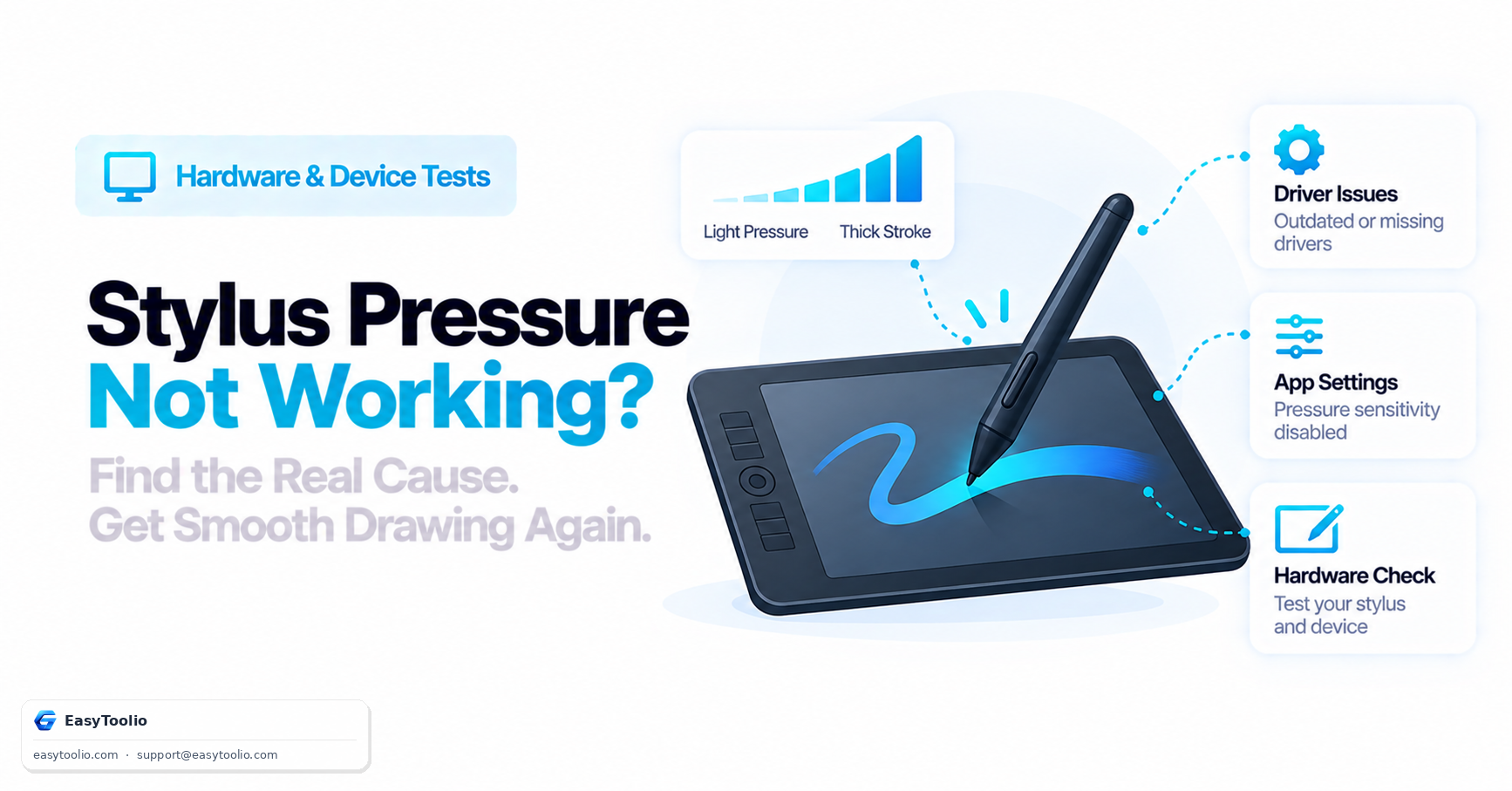
Common causes include disabled Windows Ink settings in your tablet driver configuration, outdated tablet drivers, browser permission restrictions, or the browser treating pen inputs as standard mouse clicks.

Was this tool helpful?

Be the first to rate Drawing Tablet & Stylus Test

Tap a star to rate instantly

What do you need to work out next?

Search 250+ free tools by name, or pick a category below. Every one runs instantly in your browser — no signup, nothing to install.