Digital artists rely on pen pressure to control line weight, brush opacity, and stroke feel — and few things are more frustrating than a stylus that suddenly draws flat, uniform lines no matter how hard it's pressed, or that behaves inconsistently between one art program and another. Before assuming the tablet itself is broken, it helps to understand what "pressure sensitivity" technically is and where in the stack it can actually break.
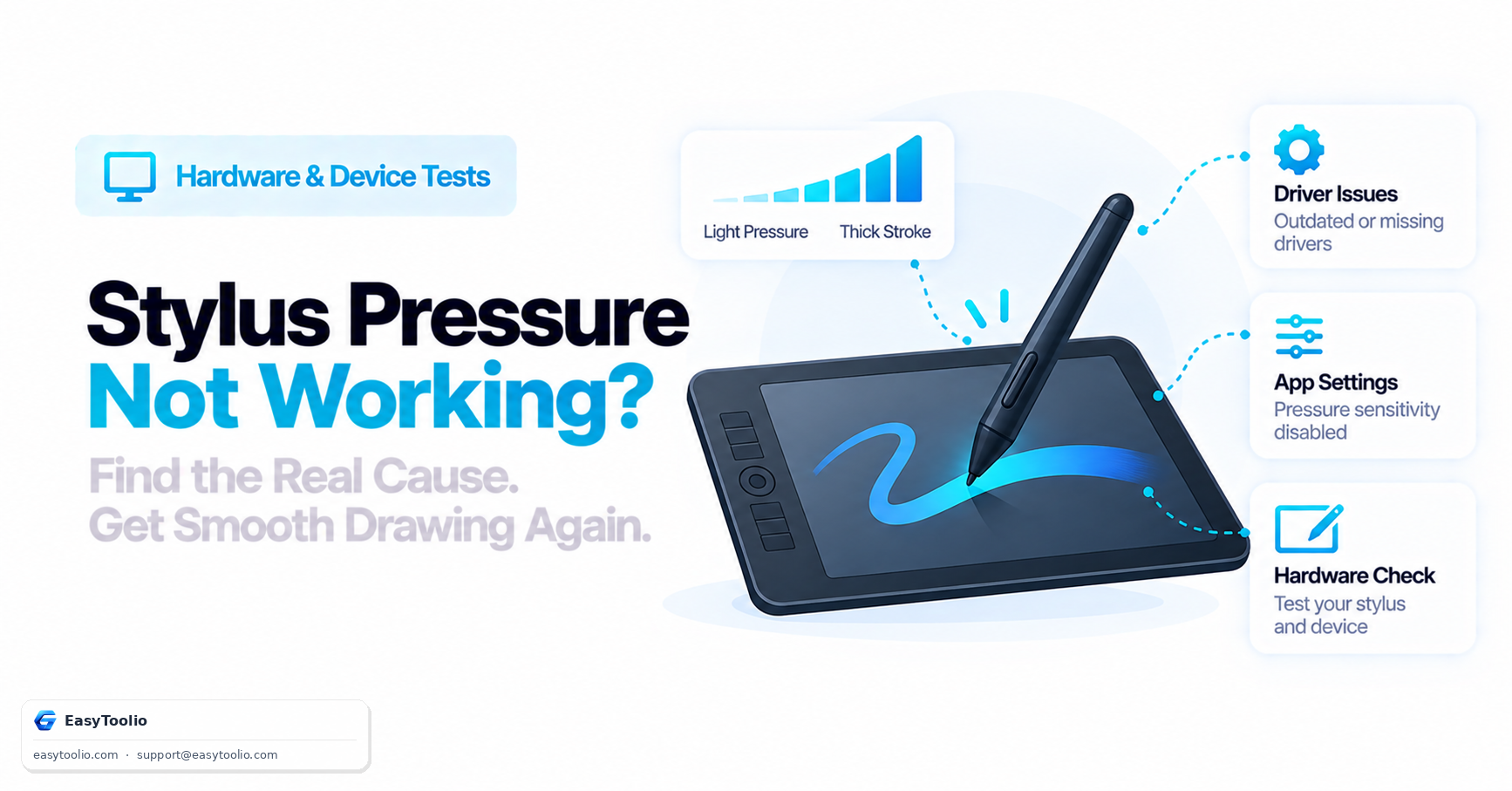
Direct Answer: Pen pressure sensitivity works by having the tablet's internal sensor detect physical force across a fine-grained scale (many tablets support thousands of discrete pressure levels), which the driver then normalizes into a 0.0 to 1.0 floating-point value exposed to software through the W3C Pointer Events API's pressure property. When pressure "isn't working right," the cause is usually one of: driver conflicts (competing Wintab/Windows Ink implementations), a misconfigured pressure curve inside the specific art application, physical tip wear reducing the nib's mechanical travel range, or connection-related latency (particularly over Bluetooth) that affects perceived responsiveness rather than the pressure values themselves.
1. How Pressure Sensitivity Actually Works
Inside a drawing tablet's pen, a sensor beneath the nib measures how far the tip is depressed as physical force is applied. Manufacturers commonly describe this in terms of discrete pressure levels — a tablet advertised with, say, 8192 levels of pressure sensitivity can distinguish that many distinct steps of applied force. The tablet driver reads this raw sensor value and normalizes it to a standardized floating-point range.
That normalized value reaches the browser (and any pointer-event-aware application) through the Pointer Events API, specifically the pressure property on a PointerEvent, which reports a value from 0.0 (no measurable pressure — typically a hovering pen or a device with no pressure hardware) to 1.0 (maximum pressure the hardware can register). Art applications then take this raw normalized value and remap it through their own pressure curve — a configurable response curve that determines, for example, how quickly brush opacity or size ramps up as pressure increases.
2. Common Causes of Pressure Not Registering Correctly
- Driver conflicts: Windows exposes two competing pen input models — legacy Wintab (used by many established art applications) and the newer Windows Ink platform API. If a tablet's driver, an art application, and the OS disagree about which model is authoritative, pressure data can be dropped, flattened, or reported inconsistently between applications on the same machine.
- Misconfigured pressure curve in the art application: Nearly every drawing program lets you customize the pressure response curve independently of the OS driver. A curve set too steep can make light touches register as near-maximum pressure; a curve that's effectively flat can make pressure seem like it isn't working at all, when the raw hardware signal is actually fine.
- Tip wear: The nib itself has a small amount of physical travel that compresses against the internal sensor. A worn-down or damaged nib has reduced mechanical travel, which can cap the maximum force the sensor is able to register before the tip bottoms out physically, artificially limiting the achievable pressure range.
- Bluetooth vs. wired connection latency: A wireless connection doesn't typically change the numeric accuracy of a given pressure sample, but it can add polling latency or reduce report rate compared to a wired connection, which affects how responsive and smooth strokes feel even when the underlying pressure values being reported are accurate at the moment they're sampled.
3. Tilt and Barrel Buttons: What They Add on Top of Pressure
Beyond raw pressure, the Pointer Events API also exposes tilt, reported as tiltX and tiltY — the angle of the stylus barrel relative to the screen surface, typically ranging from -90° to +90° on each axis. Art applications use tilt to simulate angled brush behavior, such as the broad, textured strokes of a tilted charcoal pencil or chisel-tip marker, layered on top of whatever the pressure value is doing.
Barrel buttons — the side buttons built into most styluses — are reported as auxiliary pointer buttons and are usually mapped by the tablet driver or art application to shortcuts like eraser-toggle, color picker, or undo, independent of pressure and tilt entirely.
4. Isolating Hardware/Driver Issues From App-Specific Settings
The key diagnostic value of a plain browser-based pointer-event test is that it reads the raw value the OS driver is reporting, completely bypassing any art application's custom pressure curve. This effectively splits the problem into two clean possibilities:
canvas.addEventListener('pointermove', (e) => {
    console.log(
        'type:', e.pointerType,   // "pen" vs "mouse"
        'pressure:', e.pressure,  // 0.0 - 1.0, raw from driver
        'tiltX:', e.tiltX,
        'tiltY:', e.tiltY
    );
});
- If the raw browser test shows a full, smoothly varying 0.0 to 1.0 pressure range as you vary how hard you press, the hardware and driver are functioning correctly — the problem lives in the art application's pressure curve or brush settings.
- If the raw browser test also shows a flat, stuck, or missing pressure value, the issue is upstream of any single application — most likely a driver conflict, a tip/hardware problem, or the stylus being recognized as a generic mouse rather than a pen (
pointerTypereporting"mouse"instead of"pen"is itself a strong signal of a driver-level issue, since pressure only reports meaningfully forpointerType: "pen").
5. Frequently Asked Questions (FAQs)
Why does my stylus show up as a mouse instead of a pen?
This typically happens when the tablet driver's Windows Ink or Wintab passthrough is disabled, or the tablet is running in a generic "mouse mode" compatibility setting. When that happens, the OS and browser only receive standard mouse events with no pressure or tilt data at all, regardless of what the physical hardware is capable of.
Does a Bluetooth connection make pressure values less accurate?
Not typically in terms of the numeric value itself, but Bluetooth connections commonly introduce more polling latency and can have a lower effective report rate than a wired connection, which makes strokes feel less smooth or immediate even when each individual pressure sample being reported is accurate.
Can a worn nib actually cause pressure problems?
Yes. The nib has a small amount of physical travel that compresses against the internal pressure sensor as you press harder. A worn or damaged nib has reduced mechanical travel, which can physically cap how much pressure the sensor is able to register before the tip bottoms out, limiting the maximum achievable pressure value regardless of how hard you press.
References: W3C Pointer Events Level 3 Specification (pressure, tiltX, tiltY properties).