"My internet feels slow" is almost never actually about download speed, yet a basic speed test is the first and often only thing most people run. A connection can post an excellent download number and still deliver laggy video calls, rubber-banding in games, and choppy voice chat — because those symptoms aren't caused by bandwidth at all. They're caused by three separate, specific problems that a download-speed test was never designed to detect.
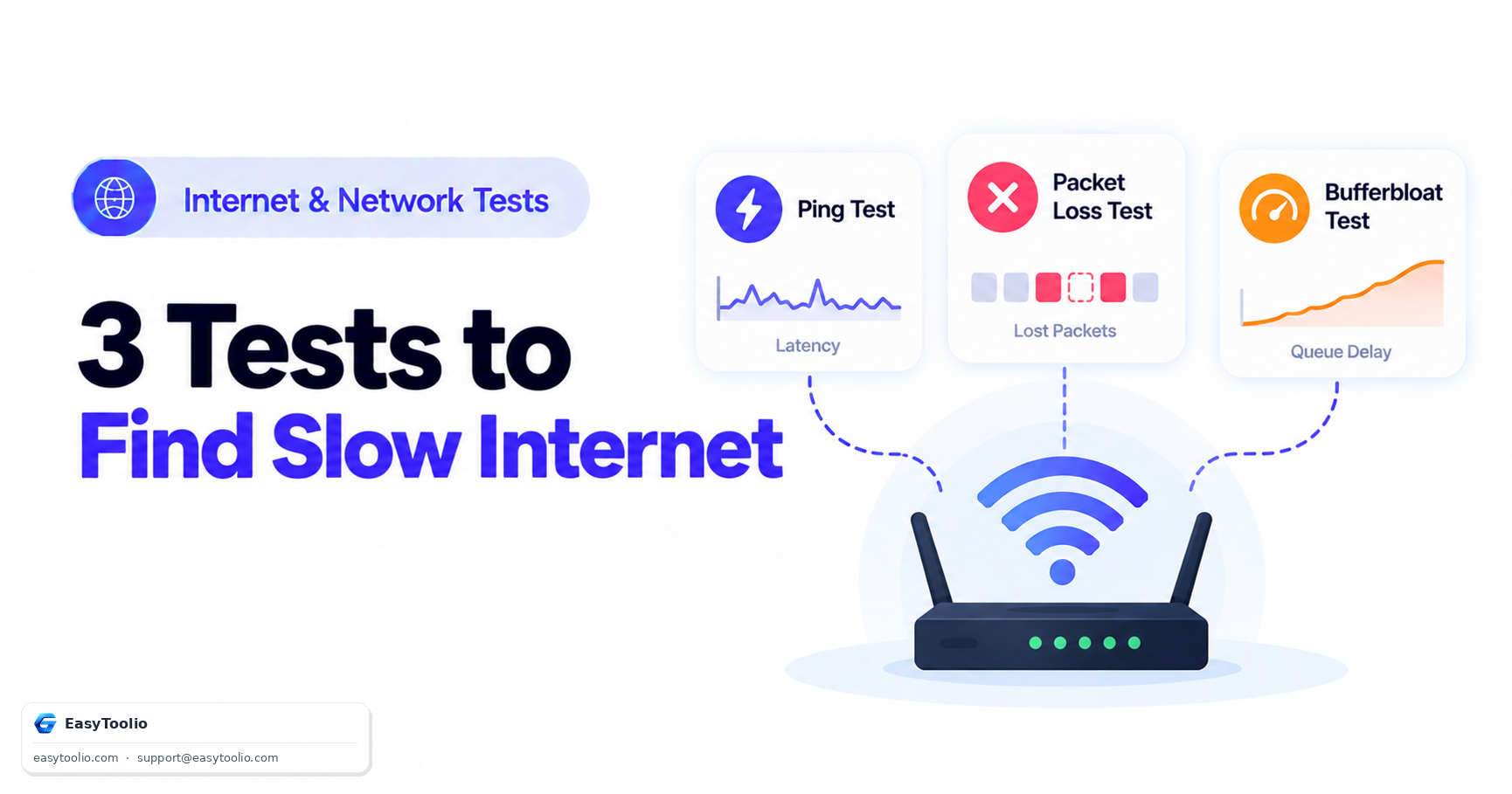
Direct Answer: A slow-feeling connection with a fine download speed usually points to one of three distinct issues, each diagnosed by a different test: high ping (latency) indicates distance or routing delay between you and the server, and explains sluggish response in real-time apps; packet loss indicates an unstable connection actively dropping data, and explains stutter, dropped calls, or disconnections; high bufferbloat indicates your router's buffer queuing too much data under load, and specifically explains the common complaint of "my speed test looks fine but gaming and video calls still lag the moment something else is downloading." Running all three in order — ping, then packet loss, then bufferbloat — identifies the actual cause instead of leaving you to guess from a single download number.
Why a Speed Test Alone Doesn't Explain "Slow"
A standard speed test measures three things: download speed, upload speed, and often a single ping figure to one server. It says nothing about:
- Whether your connection drops data packets intermittently.
- Whether latency spikes specifically when the connection is under load (the exact moment you're also streaming, downloading, or gaming).
- Whether your router's internal buffering is adding hidden delay that a raw speed number can't capture.
This is precisely why "I have 500 Mbps but my Zoom calls still freeze" is such a common, genuinely confusing complaint — the download number and the freezing are measuring two unrelated things.
Step 1: Ping (Latency) — Is Delay the Problem?
Ping measures the round-trip time for a small packet of data to reach a server and come back, in milliseconds. Run our ping test and compare against rough benchmarks:
| Ping (ms) | Typical Experience |
|---|---|
| Under 20ms | Excellent — imperceptible delay, ideal for competitive gaming |
| 20–50ms | Good — suitable for gaming, video calls, real-time apps |
| 50–100ms | Noticeable delay in fast-paced games; usually fine for calls and browsing |
| 100–150ms | Clearly noticeable lag in games; video calls may feel slightly less snappy |
| Over 150ms | Significant lag; real-time applications become frustrating |
High ping is usually explained by physical distance to the server, the number of network hops your traffic takes, or your ISP's routing quality — it is largely independent of your download speed tier.
Step 2: Packet Loss — Is Data Actually Being Dropped?
Packet loss measures the percentage of data packets that never arrive at all and must be resent or are simply lost. Run our packet loss test and treat any sustained loss above roughly 1-2% as a real problem:
| Packet Loss | Typical Experience |
|---|---|
| 0% | No issue |
| Under 1% | Usually unnoticeable |
| 1–2.5% | Noticeable stutter in video calls and voice chat; minor game rubber-banding |
| 2.5–5% | Frequent call freezing/dropouts, visible game stutter |
| Above 5% | Severe — calls disconnect, streaming buffers constantly, gaming near-unplayable |
Unlike latency, packet loss is a strong sign of an unstable link somewhere in the path — a failing cable, a congested Wi-Fi channel, an overloaded router, or an ISP-side issue — rather than a distance problem, and it's often intermittent, which is why testing over a longer window catches issues a 5-second speed test check misses entirely.
Step 3: Bufferbloat — Is Your Own Router the Culprit?
Bufferbloat is the least understood of the three and the one that most precisely explains "fine speed test, laggy everything else." It happens when a router queues (buffers) too much outgoing data during heavy load, adding latency that only appears while the connection is busy — a plain ping test run in isolation won't show it. Our bufferbloat test measures latency specifically under simulated load and compares it to idle latency:
| Bufferbloat Grade | Latency Increase Under Load | Typical Experience |
|---|---|---|
| A | Under 5ms increase | No noticeable impact |
| B | 5–30ms increase | Minor impact on gaming/calls during heavy use |
| C | 30–60ms increase | Noticeable lag spikes when a download starts elsewhere on the network |
| D/F | Over 60ms increase | Severe — video calls freeze, games become unplayable whenever any device is using bandwidth |
A poor bufferbloat grade is exactly why "someone else in the house started a large download and now my game is lagging" happens — your router is queuing that download's data ahead of your latency-sensitive traffic. Enabling Smart Queue Management (SQM) or Quality of Service (QoS) on a capable router is the standard fix.
The Diagnostic Order That Actually Works
- Run ping first, at idle (nothing else downloading). This establishes your connection's baseline latency.
- Run packet loss second, ideally over a few minutes rather than a few seconds, to catch intermittent drops that a short test would miss.
- Run bufferbloat last, specifically because it needs the connection under load to reveal itself — this is the test most likely to explain a "good speed test, bad real-world feel" complaint.
- Match the result to the symptom — general sluggishness → check ping; calls dropping or stuttering → check packet loss; lag only when something else is using the connection → check bufferbloat.
Frequently Asked Questions
Can a fast internet plan still have bad bufferbloat?
Yes, easily — bufferbloat is caused by router/modem buffer management, not by your plan's advertised speed tier. A gigabit connection with a poor router configuration can have worse real-world responsiveness than a modest connection with proper queue management enabled.
Is some packet loss always present, even on a good connection?
Occasional, very low packet loss (well under 1%) can occur even on excellent connections due to normal network conditions, and most applications compensate for it invisibly. Sustained loss above roughly 1-2% is where real symptoms typically start appearing.
Does Wi-Fi vs. wired connection affect these three tests differently?
Yes — Wi-Fi is more prone to packet loss and latency variability from interference, distance, and channel congestion, while bufferbloat is more a function of the router/modem itself regardless of wired or wireless. Testing over a wired connection first helps isolate whether Wi-Fi is contributing to the problem.
My download speed is fine — why should I bother with these other tests?
Because download speed and these three factors measure entirely different things. A high download number says nothing about latency, data loss, or router queuing behavior — all three can be poor on a connection that posts a perfectly good speed test result.
What's the actual fix for bad bufferbloat?
Enabling Smart Queue Management (SQM), sometimes labeled Quality of Service (QoS) or "Adaptive QoS," on a router that supports it is the standard fix — it works by intentionally managing which traffic gets priority during heavy load, rather than letting the buffer queue everything indiscriminately.
References: Federal Communications Commission (FCC) broadband performance guidance; Bufferbloat.net technical documentation on latency-under-load; general Internet Engineering Task Force (IETF) RFC discussions on Active Queue Management.