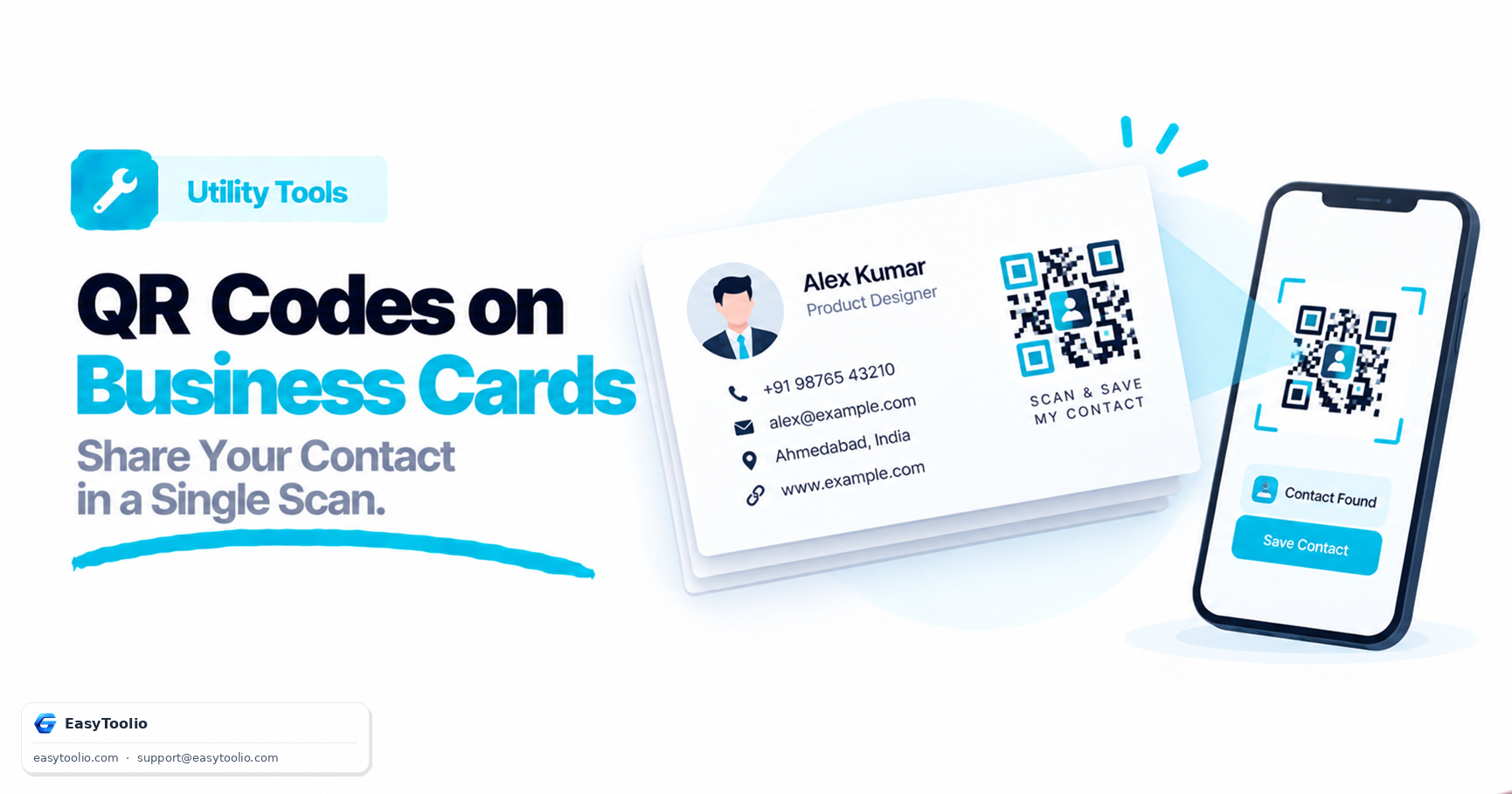
In the digital age, traditional paper business cards often end up in a drawer or, worse, the trash. Retyping contact details from a card into a smartphone contacts app is slow and tedious.
The modern solution is to embed a vCard QR Code directly on your business card. When someone scans it, their phone instantly prompts them to save your name, phone number, email, and social profiles directly to their contacts list.
Here is a practical guide to setting up and printing vCard QR codes.
1. What is a vCard?
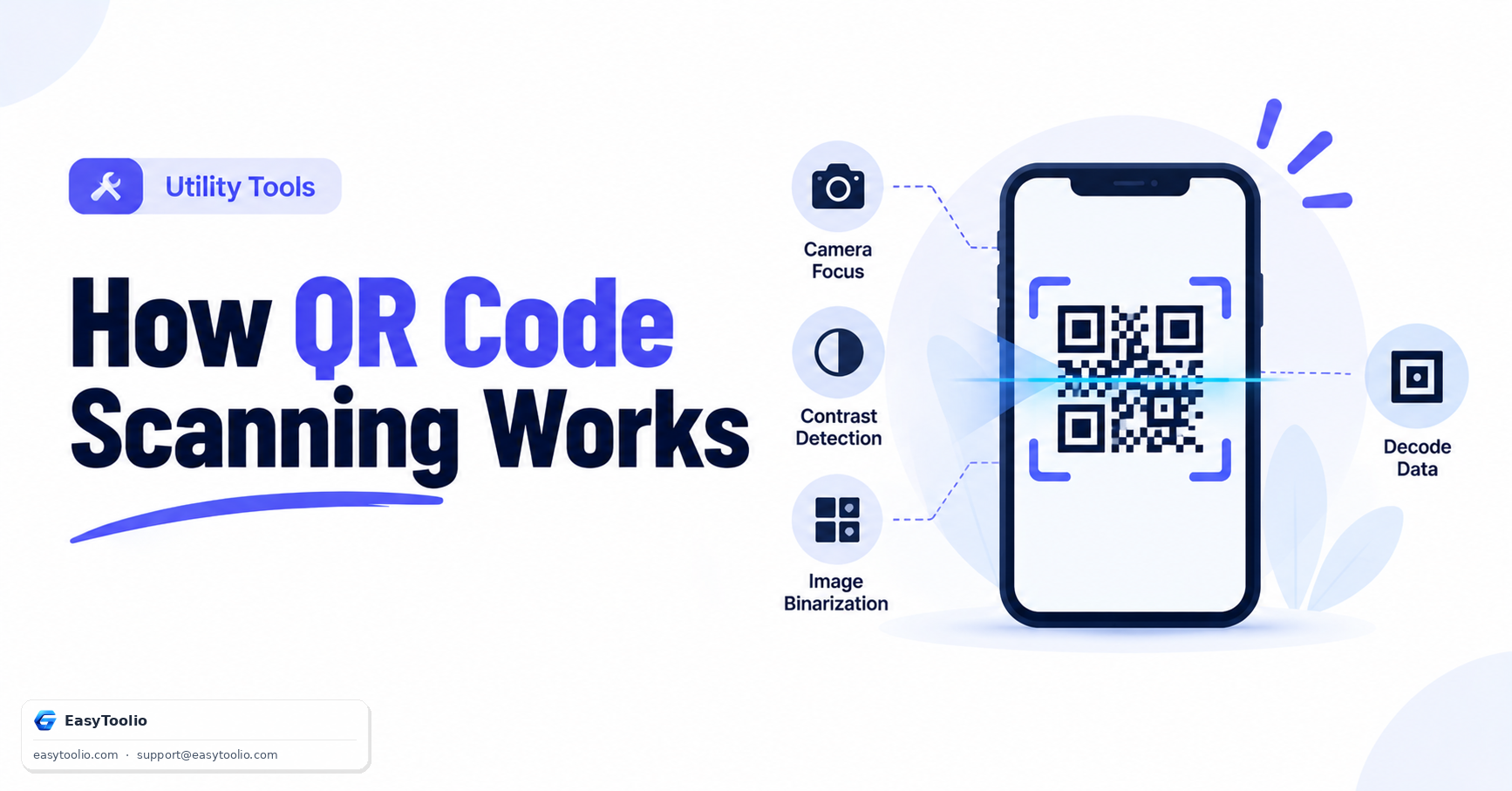
A vCard (Virtual Contact File) is a standardized file format for sharing electronic contact details. When a smartphone camera scans a QR code containing vCard text, the device's operating system recognizes the contact format and opens the native address book app automatically.
A standard vCard structure looks like this behind the scenes:
BEGIN:VCARD
VERSION:3.0
N:Smith;John;;Mr;
FN:John Smith
ORG:Toolio Inc.
TITLE:Lead Developer
TEL;TYPE=WORK,VOICE:+15551234567
EMAIL;TYPE=PREF,INTERNET:john.smith@toolio.com
URL:https://toolio.com
END:VCARD
2. Creating Your vCard QR Code
When generating your contact QR code:
- Fill out only essential fields: The more fields you populate (e.g., street address, fax, multiple notes), the denser the QR code pattern will be. Keep it simple to ensure the code remains easy to scan at small print sizes.
- Use high error correction: Since business cards get handled frequently and can accumulate scratches or smudges, select Medium or Quartile error correction to maintain scannability.
- Color Scheme: Ensure there is strong contrast (e.g., deep navy or charcoal dots on a clean white/cream background) to match your card's aesthetic.
3. Placement and Printing Guidelines
- Minimum Size: Do not print the QR code smaller than 2.0 x 2.0 cm (0.8 x 0.8 inches). A smaller footprint may prevent phone cameras from focusing on the dot grid.
- Quiet Zone: Keep a clean margin (white space) of at least 2–4 mm around the QR code. If text, graphics, or borders get too close to the patterns, scanners will fail to decode.
- Matte vs. Glossy: Choose a matte finish for your business cards. Glossy coatings reflect light and create glare, which can bounce back into the camera lens and block scanning.
4. Real-world Benefits of QR Business Cards
- Zero Friction: Clients don't have to manually type long email addresses or complex job titles.
- Accurate Information: Eliminates typos in phone numbers and website URLs.
- High Professional Appeal: Demonstrates technical proficiency and forward-thinking convenience.
- Link to Portfolios: You can include your portfolio or LinkedIn URL in the vCard so contacts can immediately view your professional work online.
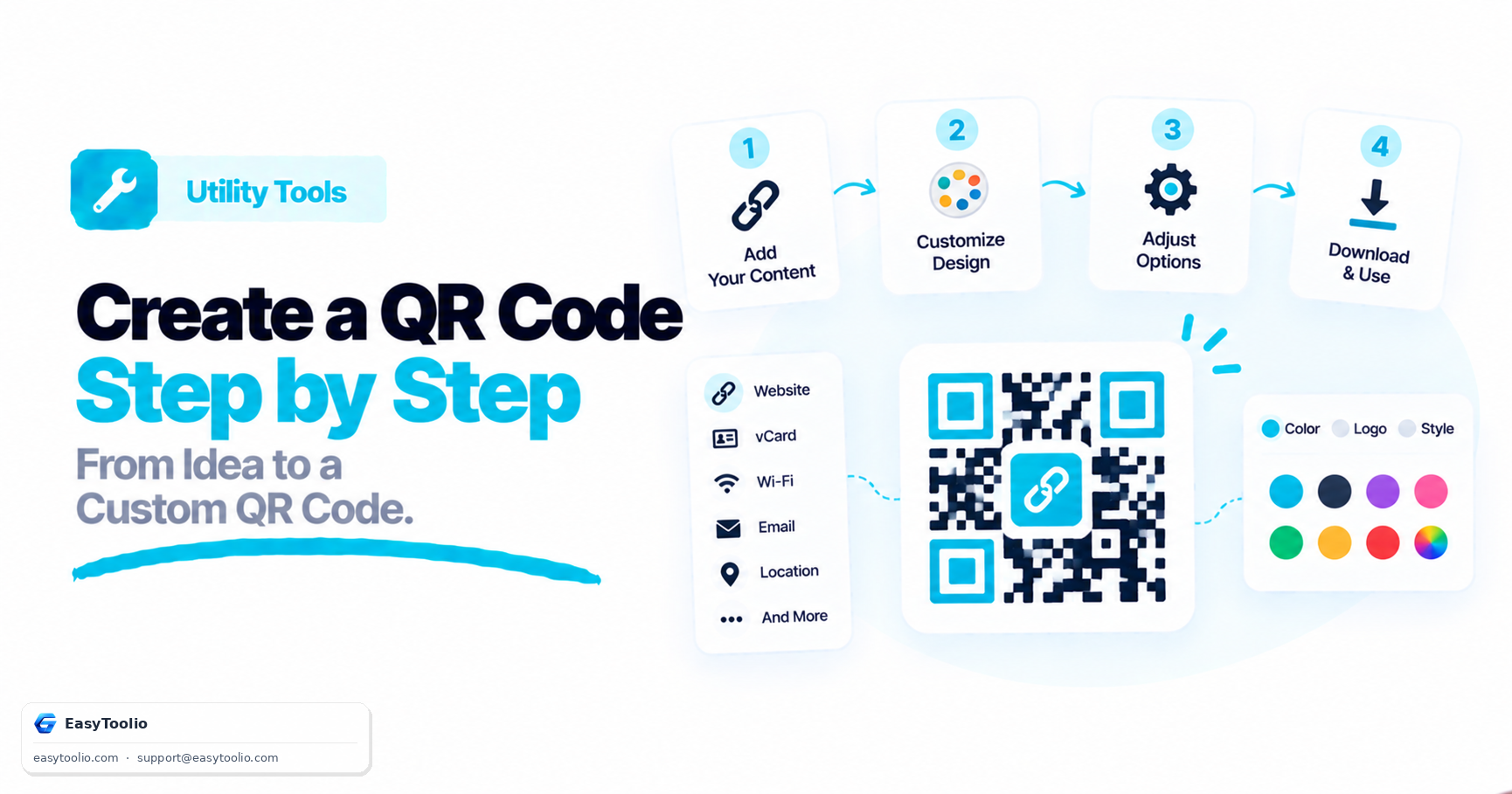
For a step-by-step tutorial on formatting and downloading your digital contact card, read our guide: How to Create a QR Code: A Step-by-Step Customization Guide.
vCard Format Versions: 2.1, 3.0, and 4.0
Not all vCards are created equal — there are several format versions in circulation, and compatibility varies by device:
- vCard 2.1: The oldest widely supported version, still used by some legacy systems, but with looser formatting rules that can cause inconsistent parsing on modern phones.
- vCard 3.0: The most broadly compatible version across both iOS and Android today, and generally the safest default for a QR code meant for a general audience.
- vCard 4.0: The current IETF standard, supporting richer fields (such as multiple structured addresses and better internationalization), but with less consistent support in older Android contact apps.
If you are unsure which version a QR generator uses, 3.0 is generally the safest choice for broad compatibility across both major mobile platforms.
Common Mistakes to Avoid
- Overloading the vCard with unnecessary fields. Adding a home address, multiple phone numbers, a fax line, and long notes all increase the QR code's data density, making the printed pattern denser and harder to scan at small sizes. Stick to the essentials: name, one phone number, one email, and a website.
- Using unusual characters or emoji in name or title fields. Some vCard parsers mishandle non-standard characters, which can corrupt the saved contact or cause the import to fail silently.
- Forgetting to test on both iOS and Android. The two platforms handle vCard parsing slightly differently — always confirm a code saves cleanly as a correctly formatted contact on both before printing in bulk.
- Printing at low resolution. Even a simple vCard QR code needs sharp edges (ideally 300 DPI or higher) — blurry printing is one of the most common causes of scan failures on business cards.
- Not leaving a quiet zone around the code. A striking card design that places text or a logo too close to the QR code's edge can block scanners from locking onto the pattern.
Frequently Asked Questions
Q: What happens when someone scans a vCard QR code on their phone? A: Their phone recognizes the embedded vCard format and automatically opens the native contacts app, prompting them to save the name, phone number, email, and other details directly.
Q: Why should business cards with QR codes use a matte finish instead of glossy? A: Glossy coatings reflect light and create glare that bounces into the camera lens, which can prevent the phone from focusing on and decoding the QR pattern.
Q: What is the minimum size for a QR code printed on a business card? A: 2.0 x 2.0 cm (0.8 x 0.8 inches) — anything smaller risks preventing phone cameras from focusing clearly on the dot grid.
Q: Which vCard version should I use for the widest compatibility? A: vCard 3.0 is generally the safest choice — it has the broadest, most consistent support across both iOS and Android contact apps, more so than the older 2.1 or newer 4.0 standards.
Q: Why does adding more fields to my vCard make the QR code harder to scan? A: Every additional field (address, fax, long notes, etc.) increases the amount of data encoded, which makes the visual pattern denser. Denser patterns require larger print sizes and better print quality to scan reliably.