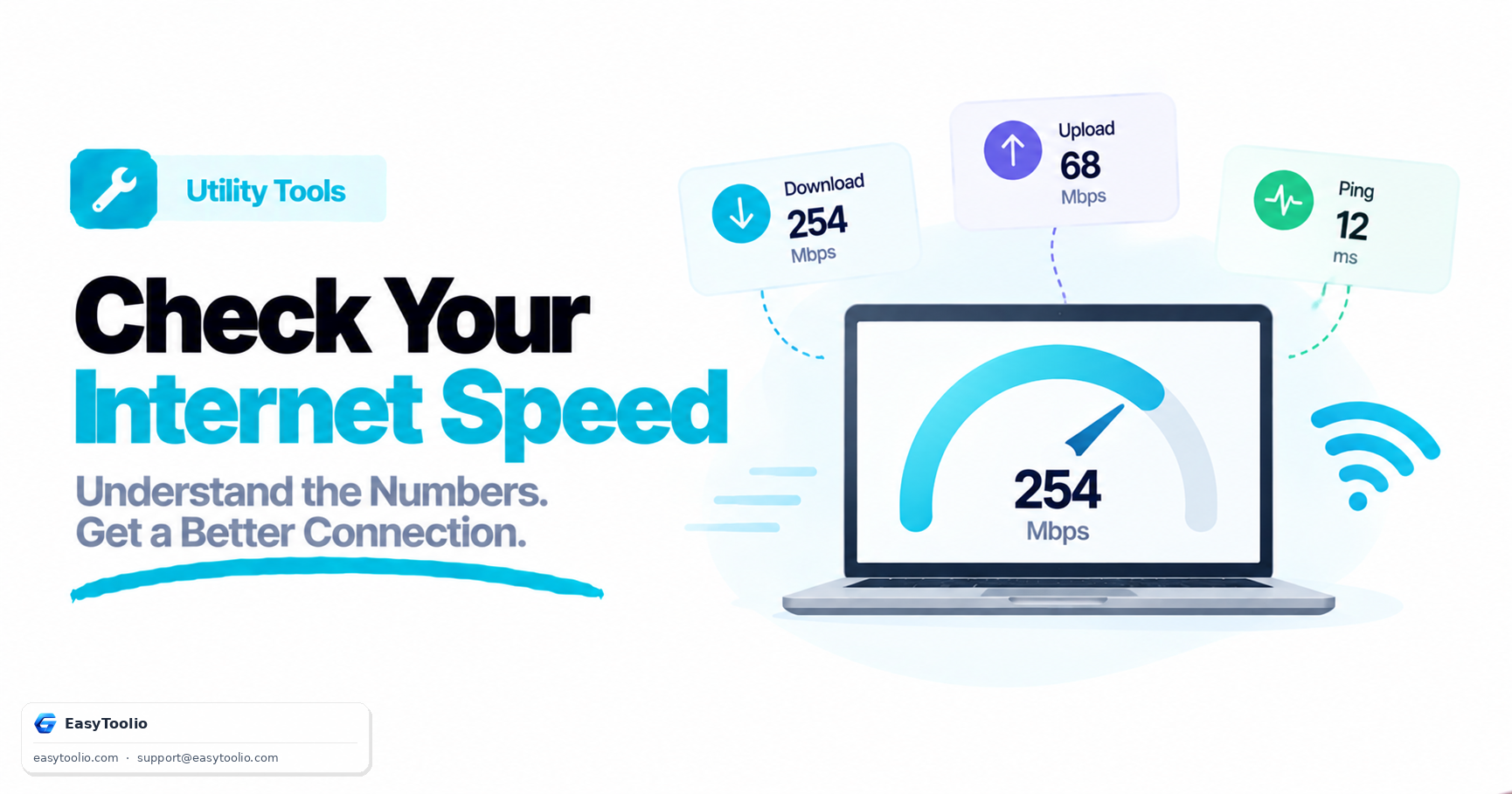
"Why is my internet so slow?" is a question we have all asked, whether we are trying to stream a movie, join a crucial Zoom meeting, or download a large game patch. Running an online speed test is the quickest way to diagnose connection issues.
However, speed test results can be confusing if you do not understand the metrics, or misleading if you run the test under poor conditions. Here is a comprehensive guide to understanding your network speed, what the numbers mean, and how to optimize your connection.
Deconstructing Your Speed Test Results
When you run a speed test, it measures the rate at which data moves between your device and a test server. The test generates four critical metrics:
1. Download Speed (Measured in Mbps)
Download speed is the rate at which data travels from the internet to your device. It dictates how quickly web pages load, files download, and videos stream. For most users, this is the most important number.
2. Upload Speed (Measured in Mbps)
Upload speed is the rate at which data travels from your device to the internet. You rely on upload speed when uploading files to Google Drive, backing up photos, sending emails with large attachments, streaming on Twitch, or participating in video calls.
3. Latency / Ping (Measured in Milliseconds)
Ping measures the reaction time of your connection—specifically, how long it takes for a small packet of data to travel from your device to the test server and back. A lower ping (e.g., under 20ms) is vital for online gaming, live auctions, and real-time voice calls. High ping (above 100ms) causes noticeable delays, even if your download speed is fast.
4. Jitter (Measured in Milliseconds)
Jitter measures the stability of your ping. It represents the variation in latency over time. For example, if your ping bounces between 15ms, 80ms, and 20ms, you have high jitter. High jitter causes packet loss, resulting in choppy audio and stuttering video in VoIP calls.
What Speed Do You Actually Need?
Your bandwidth needs depend on the number of active users and devices in your household. Here is a general breakdown of recommended speeds for various activities:
| Activity | Minimum Download | Recommended Download |
|---|---|---|
| Email & Basic Browsing | 1–3 Mbps | 5–10 Mbps |
| HD Video Streaming (1080p) | 5 Mbps | 15–25 Mbps |
| 4K Ultra HD Streaming | 25 Mbps | 50+ Mbps |
| Video Conferencing (Zoom/Teams) | 3 Mbps | 10 Mbps (both directions) |
| Online Gaming | 5 Mbps | 15+ Mbps (with latency < 50ms) |
| Smart Home Devices | 5 Mbps | 25+ Mbps |
| Large File Downloads | 25 Mbps | 100+ Mbps |
Why Speed Tests Can Vary (and How to Fix It)
It is common to get different results when running back-to-back speed tests. This variation occurs due to several factors:
- Wi-Fi vs. Ethernet: Wi-Fi connections are prone to interference from walls, household appliances, and neighboring networks. A physical Ethernet cable is always faster, more stable, and more accurate.
- Router Placement: If your router is hidden in a closet or placed far from your device, your signal strength will drop, resulting in slower speeds.
- Background Bandwidth Hogging: If another device in your home is downloading a game, running a backup, or streaming in 4K during the test, it will consume bandwidth, lowering your results.
- Server Location: The physical distance to the speed test server matters. Testing against a server in your local city will always show lower ping and faster speeds than testing against a server across the ocean.
How to Get an Accurate Speed Test:
- Connect via Ethernet if possible, or stand close to your router.
- Close all other browser tabs and background applications (such as Steam, Spotify, or cloud sync clients).
- Ensure no other devices are heavily using the network (stop any active downloads or streams).
- Run the test at different times of the day to account for ISP peak congestion hours (usually between 7:00 PM and 11:00 PM).
Quick Steps to Improve Your Internet Speed
If your speed test results are significantly lower than your subscribed plan:
- Power Cycle Your Equipment: Unplug your modem and router for 30 seconds, then plug them back in. This clears system caches and re-establishes a clean connection with your ISP.
- Upgrade Your Wi-Fi Frequency: Switch your device from the 2.4 GHz band to the 5 GHz or 6 GHz band on your router. 5 GHz offers much faster speeds, although it has a shorter range.
- Change the Wi-Fi Channel: Use your router's admin panel to switch to a less congested channel, especially if you live in an apartment building.
- Disable Background Data: Turn off automatic updates on phones and computers during working hours.
- Contact Your ISP: If your speeds are consistently less than 80% of what you pay for after troubleshooting, there may be a physical line fault or configuration issue on your ISP's end.
Frequently Asked Questions
Q: Why do I get different speed test results every time I run one? A: Variables like Wi-Fi versus Ethernet, router placement, other devices consuming bandwidth, and the physical distance to the test server all affect the result — for the most accurate reading, test over Ethernet with other devices idle.
Q: What ping is good enough for online gaming? A: Under 20ms is ideal for real-time gaming and voice calls, while anything above 100ms causes noticeable delay even if your download speed is fast.
Q: When should I contact my ISP about slow speeds? A: If your results are consistently below 80% of your subscribed plan after power cycling your equipment and testing at different times of day, there may be a physical line fault on the ISP's end.