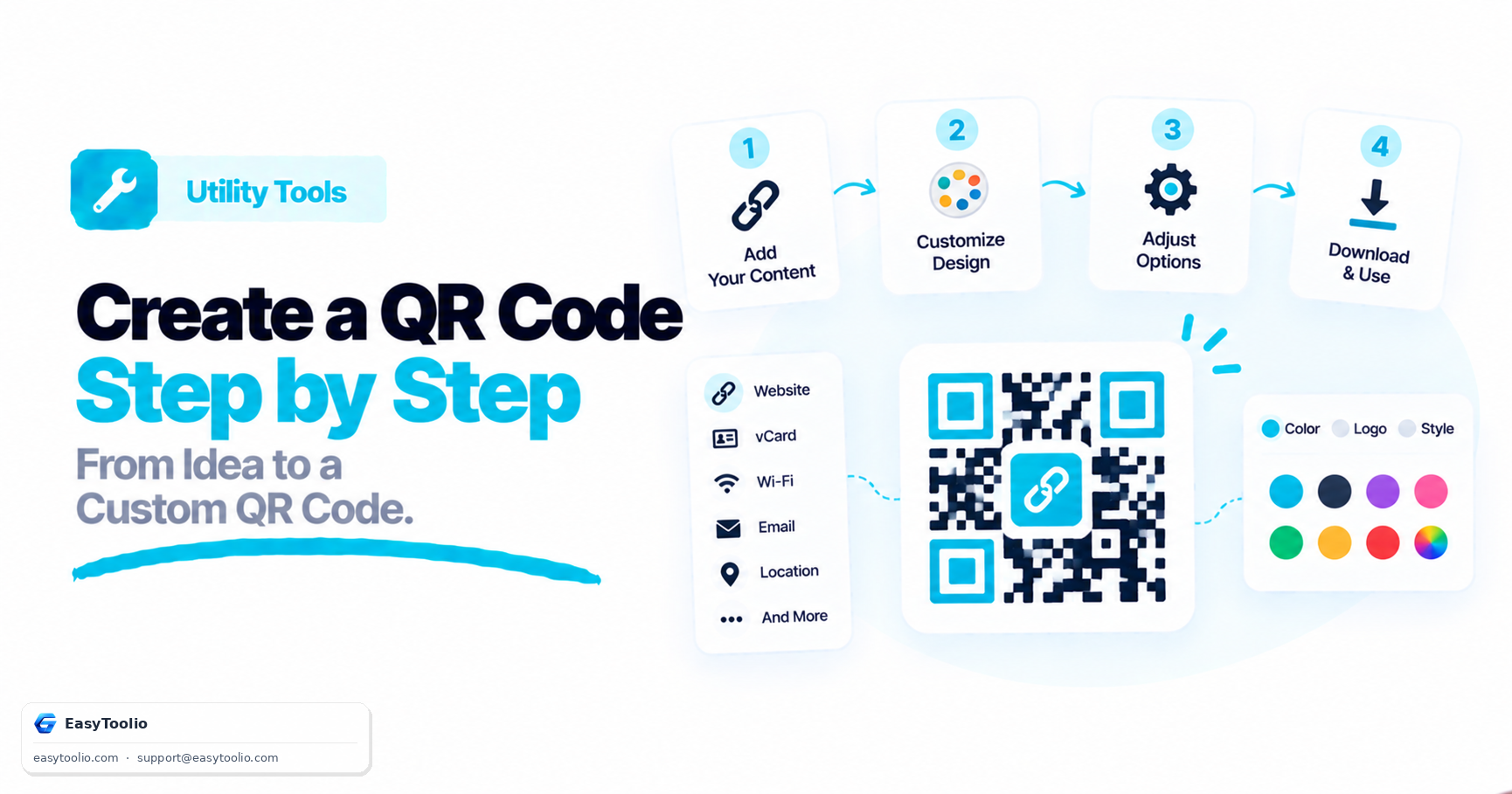
QR codes (Quick Response codes) have become an essential tool for modern businesses, educators, and content creators. They provide a quick, contactless bridge between physical objects (like business cards, flyers, restaurant tables) and digital destinations.
If you have ever wondered how to make one, you are in the right place. In this guide, we will walk you through a step-by-step tutorial on how to create a highly customized, professional QR code for free using Toolio's Free QR Code Generator.
What Can You Link to a QR Code?
Before we begin, it is helpful to know what kinds of information you can package inside a QR code. With our tool, you are not limited to just website links. You can generate:
- URL: Send users to a website, blog post, social media page, or online form.
- Wi-Fi: Let guests connect to your home or office Wi-Fi network instantly without typing a password.
- vCard (Contact Card): Share your name, phone number, email address, job title, and company. When scanned, it prompts the scanner to save your details directly to their contacts app.
- WhatsApp / SMS: Open a chat window with a pre-written message to a specific phone number.
- Email: Draft a ready-to-send email with a pre-filled subject line and body text.
- Plain Text: Display a short text message, coupon code, or product description offline.
- Event: Share event details (location, date, time) that add themselves to the scanner's digital calendar.
Step-by-Step: How to Create Your QR Code on Toolio
Creating a custom QR code on Toolio takes less than a minute. Follow these simple steps:
Step 1: Navigate to the Generator
First, head over to the Free QR Code Generator tool on our platform. The tool works entirely in your browser, so you do not need to download any software or register for an account.
Step 2: Choose Your Content Type
At the top of the generator, you will see a list of tabs representing different content types (URL, Wi-Fi, Text, Contact, etc.). Click the tab that matches the kind of QR code you want to make.
Step 3: Enter Your Data
Once you select your content type, the input fields will update.
- If you chose URL, paste your destination link (make sure it includes
https://). - If you chose Wi-Fi, enter your network SSID (name), password, and security type (typically WPA/WPA2).
- Fill in the corresponding details carefully, as typos will cause the QR code to point to the wrong destination.
Step 4: Customize the Visual Design (Optional but Recommended)
Standard black-and-white QR codes are functional, but custom designs get up to 30% more scans. Toolio offers extensive customization panels:
- Color Customization: Choose a single solid color or a beautiful gradient for your dots. You can also pick a background color. Tip: Always ensure the background is much lighter than the dots to maintain high contrast!
- Design Templates: Choose from our quick templates to style your code (e.g., Rounded Dots, Classic Square, Elegant Dots).
- Quick Logo Presets: Add a central icon (like the WhatsApp, Instagram, Google, or Location icon) to let users know what the QR code is for, or upload your own company logo.
- Custom Eye Shapes: Customize the three large square locator patterns in the corners.
Step 5: Adjust Error Correction Level
Under the customization panel, choose your Error Correction Level (Low, Medium, Quartile, High). If you added a central logo, select High (H). This tells the generator to add more redundant data blocks, ensuring the code remains 100% scannable even if 30% of it is covered by your logo.
Step 6: Test, Download, and Print
Before downloading, point your phone's camera at the live preview on your screen to test that it scans instantly.
- Select your preferred format: PNG is perfect for emails, websites, and social media. SVG is a vector format that is best for high-quality printing because it can scale infinitely without getting pixelated.
- Click Download QR Code to save the file.
3 Pro Tips for Printing QR Codes
If you plan to print your QR code on physical assets, keep these guidelines in mind:
- Size Matters: Never print a QR code smaller than 2.0 x 2.0 cm (0.8 x 0.8 inches) on business cards, or 3.0 x 3.0 cm on flyers.
- Leave a Safe Border: Ensure there is a small empty margin (called the "Quiet Zone") around your QR code. If graphics or text get too close, scanners will get confused.
- Avoid Reflective Finishes: When printing flyers or menus, choose a matte paper finish instead of a glossy one. Glossy coatings reflect light and glare, which blocks camera lenses from detecting the code pattern.
Ready to make your first customized QR code? Head straight to our Free QR Code Generator to get started!
Frequently Asked Questions
Q: Do custom-designed QR codes actually scan better than plain black-and-white ones? A: Custom designs with proper contrast can get up to 30% more scans than standard codes, since branded and colorful designs tend to attract more engagement from users.
Q: What error correction level should I pick in Step 5 if I'm adding a logo? A: High (H) — it adds enough redundant data blocks that the QR code stays fully scannable even if roughly 30% of it is covered by your logo.
Q: Which file format should I download my QR code in for printing versus online use? A: SVG for printing, since it's a vector format that scales infinitely without pixelating; PNG for emails, websites, and social media.