Any player who splits time between two or three shooters knows the specific frustration of "my aim feels wrong" the moment they alt-tab from one game to another. The sensitivity slider in each game uses different internal scaling, different default FOV, and sometimes a completely different unit system, so a setting that feels perfect in one title can feel sluggish or twitchy in the next — even at the "same" number. The fix isn't guesswork; it's converting your actual physical mouse movement, in real-world units, between games using a small set of calculators built exactly for this problem.
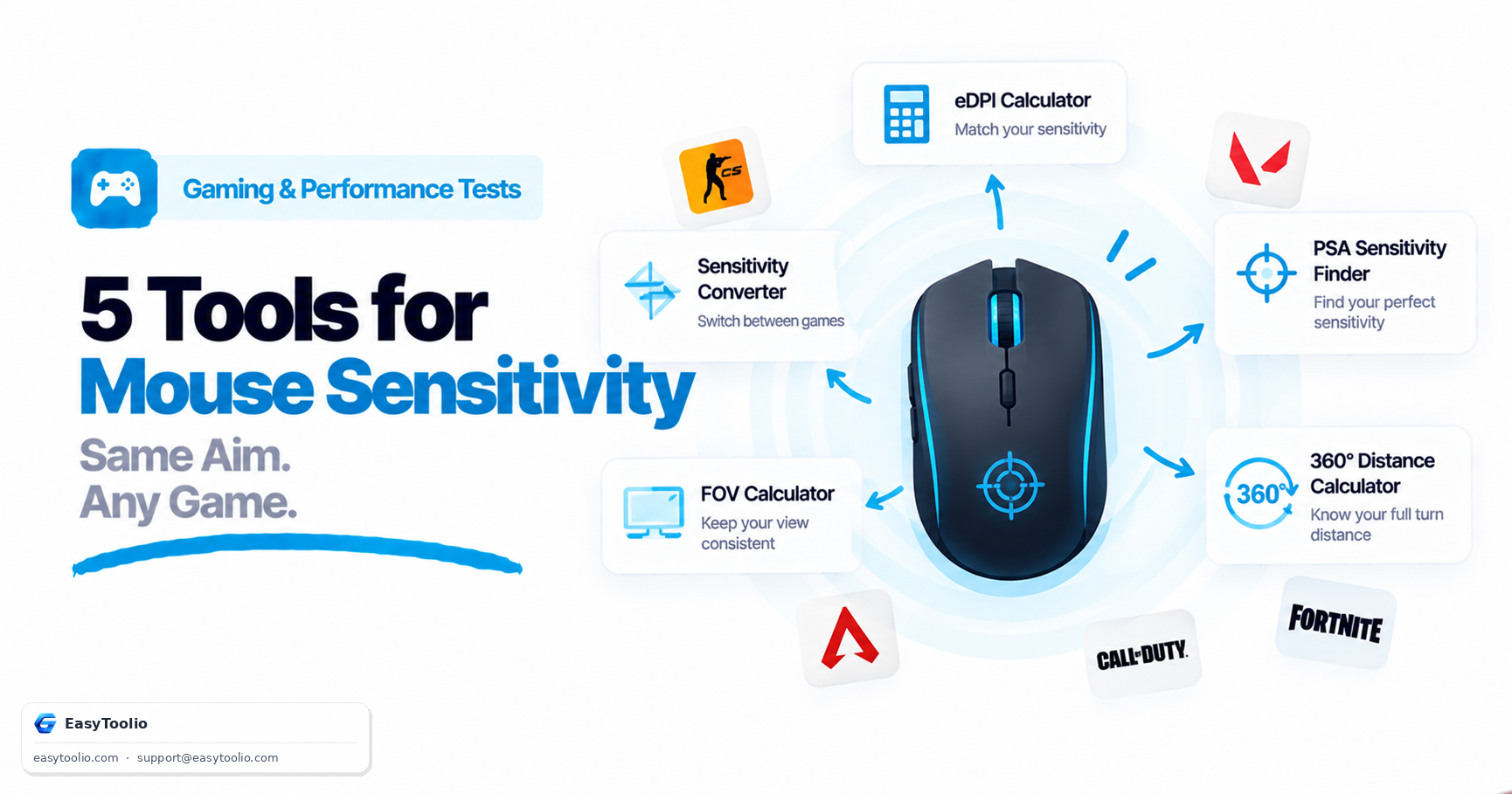
Quick List: Establish your true sensitivity baseline with the eDPI Calculator, translate settings between specific game engines with the Mouse Sensitivity Converter, normalize your field of view with the FOV Calculator, find the community-tested "Pro Settings Average" with the PSA Sensitivity Finder, and measure the physical mousepad distance for a full 360° turn with the 360° Distance Calculator.
1. eDPI Calculator
Effective DPI is the single number that actually determines how far your crosshair moves for a given physical mouse movement — it's calculated by multiplying your mouse's hardware DPI by your in-game sensitivity multiplier. Two players can have wildly different DPI and in-game sensitivity settings and still aim identically if their eDPI matches, which is why eDPI, not either number alone, is the real basis for comparison between setups. Calculating your own eDPI first gives you a stable reference point before converting anything between games, since every other tool on this list ultimately relates back to this figure. eDPI Calculator
2. Mouse Sensitivity Converter
Different game engines apply sensitivity multipliers differently under the hood — Source engine games, Unreal-based titles, and Riot's proprietary engines all scale raw mouse input by different constants, so identical slider values produce different actual turn rates. A sensitivity converter takes your known sensitivity in one game and your mouse DPI, then outputs the equivalent value to punch into a different game so your physical arm movement produces the same crosshair rotation in both. This is the core tool for players moving between, say, a tactical shooter and a fast-paced arena shooter without having to relearn flick distances from scratch each session. Mouse Sensitivity Converter
3. FOV Calculator
Field of view changes how much of the game world is visible on screen, but it also silently changes how fast objects appear to move across your screen at a fixed turn speed — a wider FOV makes the same physical turn look and feel slower because more world is compressed into the same screen width. An FOV calculator converts a comfortable FOV setting from one game (or one aspect ratio) into the equivalent FOV in another, accounting for horizontal versus vertical FOV conventions that differ between engines. Getting this matched is what makes a sensitivity conversion actually feel right, since sensitivity and FOV are physically linked in how fast targets cross your view. FOV Calculator
4. PSA Sensitivity Finder
PSA stands for Pro Settings Average — a crowd-sourced benchmark built from the publicly known sensitivity and eDPI settings of top competitive players in a given title. Rather than guessing at a starting sensitivity from zero, this tool shows you the statistical middle ground that high-level players in your specific game have converged on, which is a far better starting point than an arbitrary default. It's especially useful when picking up a brand-new game: instead of spending weeks tuning blind, you start near where the competitive population already landed and adjust in small increments from there. PSA Sensitivity Finder
5. 360° Distance Calculator
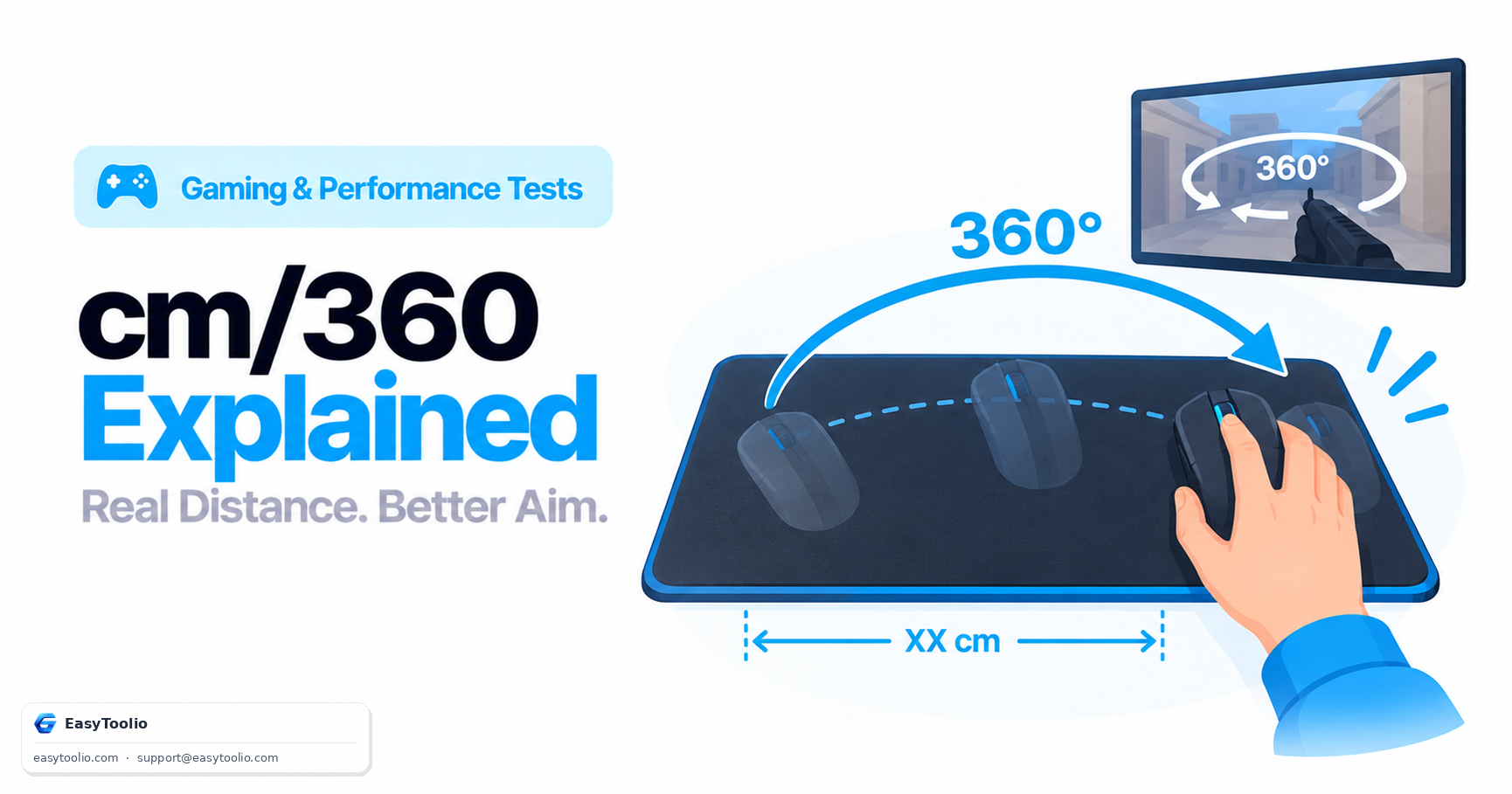
This calculator answers a very concrete physical question: given your DPI and in-game sensitivity, how many centimeters (or inches) of actual mousepad space does a full 360-degree turn require? Competitive players use this number to size their mousepad correctly and to build consistent flick-shot muscle memory, since a 360 distance that's too small forces micro-adjustments mid-turn, while one that's too large means running out of pad space during a spin. Once you know this distance in one game, it becomes another concrete anchor point for verifying that a sensitivity conversion to a new game actually preserved your real physical turning motion. 360° Distance Calculator
| Tool | Best For | Category |
|---|---|---|
| eDPI Calculator | Establishing your true baseline | Gaming Speed |
| Mouse Sensitivity Converter | Matching feel between engines | Gaming Speed |
| FOV Calculator | Matching field of view | Gaming Speed |
| PSA Sensitivity Finder | Starting point in a new game | Gaming Speed |
| 360° Distance Calculator | Verifying physical turn distance | Gaming Speed |
How to Use These Together
Begin with the eDPI Calculator to pin down your current setup's true sensitivity as a single reference number, then check it against the PSA Sensitivity Finder to see how it compares to competitive norms in your main game. When adding a second game, run the Mouse Sensitivity Converter to get an equivalent starting value, match your FOV with the FOV Calculator so objects cross the screen at a consistent visual speed, and confirm the result with the 360° Distance Calculator to make sure your physical arm motion for a full turn hasn't quietly changed. Treat the converted number as a starting point, not gospel — small manual tweaks after a few matches are normal.
Frequently Asked Questions (FAQs)
Will a converted sensitivity feel identical immediately?
It will be very close, but engine-specific factors like raw input handling, acceleration curves, and mouse smoothing settings aren't always captured perfectly by a conversion formula. Expect the converted value to feel roughly 90-95% correct out of the gate, with a short adjustment period of a session or two to fully settle in.
Is a lower sensitivity always better for aim?
No — lower sensitivity generally improves precision on small, distant targets but costs speed on close-range flicks and fast 180-degree turns, which is why the 360° Distance Calculator matters: it grounds the sensitivity/precision tradeoff in a concrete physical measurement rather than an abstract slider value. The right sensitivity is the one your mousepad, desk space, and playstyle can consistently support, not the lowest number a pro happens to use.
Reference: Community-maintained competitive settings databases (e.g., ProSettings-style aggregation) and game-engine documentation on sensitivity scaling.