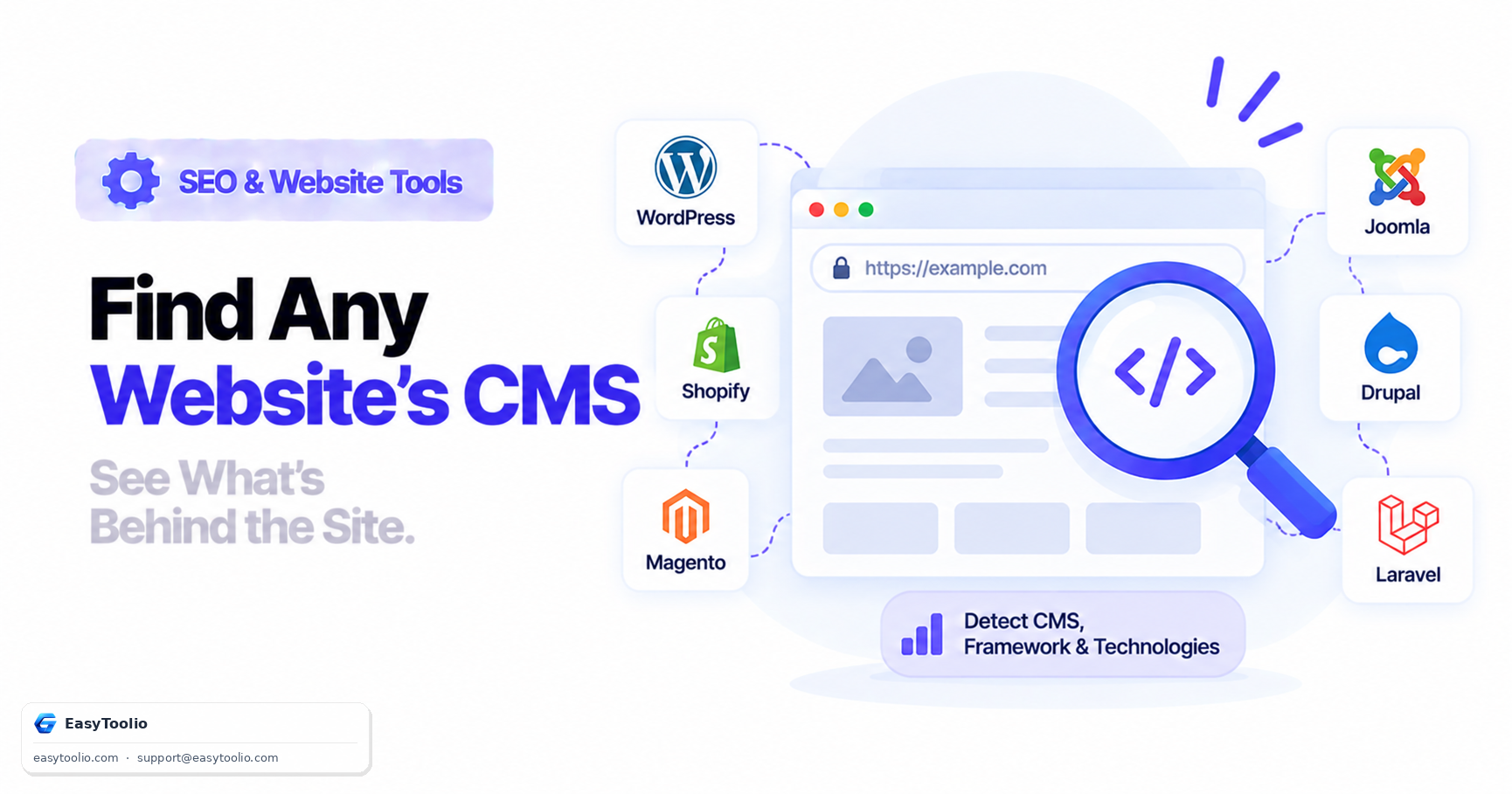
You land on a competitor's site, or inherit a client's old website with no documentation, and the first question is simple: what is this thing actually built on? Rather than guessing from how the site looks, there is a repeatable set of manual checks anyone can run from a browser and a terminal — no special access required, because every signal below is visible to any anonymous visitor.
This is a hands-on manual process. It also happens to be exactly what an automated technology detector tool is doing under the hood, just faster and across many more signatures at once.
Direct Answer: You can identify a website's CMS or framework by combining four public signals: viewing page source for a generator meta tag, probing common CMS-specific file and directory paths, inspecting the DOM for JavaScript framework signatures (React's data-reactroot, Vue's data-v- attributes), and reading HTTP response headers like X-Powered-By and Server. No single signal is conclusive on its own — CMS platforms and hosts can strip any of them — but two or three matching signals together give a confident answer.
1. View Source for the Generator Meta Tag
The fastest first check is Ctrl+U (or view-source: in the address bar) and a search for name="generator":
<meta name="generator" content="WordPress 6.4" />
<meta name="generator" content="Joomla! - Open Source Content Management" />
<meta name="generator" content="Drupal 10 (https://www.drupal.org)" />
This is the single most reliable signal when it's present — but many security-conscious site owners deliberately strip this tag, so its absence tells you nothing either way.
2. Probe Common CMS File and Directory Paths
Every major CMS ships predictable file structures. Appending a known path to the domain and checking the HTTP response is often decisive:
| CMS | Path to Check | What Confirms It |
|---|---|---|
| WordPress | /wp-content/, /wp-json/ |
A 200 OK on /wp-json/ returns a JSON REST API response listing the site name and namespaces |
| Drupal | /sites/default/, /CHANGELOG.txt |
CHANGELOG.txt often exposes the exact Drupal core version |
| Joomla | /administrator/, /media/system/js/ |
A Joomla login screen or system JS folder listing confirms the platform |
| Magento | /skin/frontend/, /static/version*/ |
Versioned static asset paths are unique to Magento's build pipeline |
curl -s -o /dev/null -w "%{http_code}\n" https://example.com/wp-json/
# 200 → WordPress REST API is active and publicly reachable
3. Inspect JavaScript Framework Signatures in the DOM
Modern front-end frameworks leave fingerprints directly in the rendered HTML that are visible via "Inspect Element":
| Framework | DOM Signature | Where to Look |
|---|---|---|
| React | data-reactroot attribute, or a root <div id="root"> with no server-rendered content |
Root container element |
| Vue | data-v-xxxxxxxx scoped-style attributes on nearly every element |
Any component wrapper element |
| Angular | ng-version="17.0.0" attribute on the root app element |
<app-root ng-version="..."> |
| Next.js | A <script id="__NEXT_DATA__" type="application/json"> block containing page props |
End of <body> |
<!-- Next.js signature — confirms both React and the Next.js framework layer -->
<script id="__NEXT_DATA__" type="application/json">{"props":{"pageProps":{...}}}</script>
4. Read HTTP Response Headers
A simple header request often reveals the backend language and web server, independent of anything visible in the HTML:
curl -I https://example.com

HTTP/1.1 200 OK
Server: nginx/1.24.0
X-Powered-By: PHP/8.3.2
X-Drupal-Cache: HIT
Server identifies the web server software; X-Powered-By frequently identifies the backend language runtime; platform-specific headers like X-Drupal-Cache or X-Generator are a near-certain giveaway when present. Note that many production teams strip these headers deliberately (expose_php = Off in PHP, server_tokens off in Nginx) precisely to prevent this kind of fingerprinting, so a missing header is inconclusive rather than a negative result.
5. Don't Forget Hosted Website Builders, Not Just Self-Hosted CMSs
The checks above focus on traditional self-hosted CMS platforms, but a large share of small-business sites now run on hosted, all-in-one builders rather than WordPress or Drupal. These leave their own distinctive fingerprints, usually in <script> or <link> source URLs rather than a generator tag:
| Platform | Signature to Look For | Where |
|---|---|---|
| Shopify | Script/asset URLs containing cdn.shopify.com, a Shopify.shop JS object |
Page source, DOM |
| Wix | Asset URLs containing static.wixstatic.com or parastorage.com |
Page source |
| Squarespace | Asset URLs containing static1.squarespace.com, <meta name="generator" content="Squarespace"> |
Page source |
| Webflow | HTML comment <!-- Last Published: ... -->, class names prefixed w- |
Page source, DOM |
These are often easier to identify than a hardened self-hosted CMS, because hosted platforms rarely bother stripping their own asset-domain fingerprints — doing so would break the CDN delivery the platform depends on.
6. A Worked Example Walkthrough
Suppose you land on an unfamiliar site and want an answer in under two minutes:
- View source, search for
generator. Nothing found — inconclusive, not a negative result. - Check the DOM for framework signatures. You spot
data-v-4a2b1cattributes scattered across the markup — a strong Vue.js signal. - Try
/wp-json/anyway, just to rule WordPress out. It 404s, consistent with step 2. - Read the response headers.
Server: cloudflareand noX-Powered-By— Cloudflare is a CDN/proxy, not a CMS signal, so this is neutral. - Check the asset URLs. You notice
static1.squarespace.comin a script tag alongside the Vue attributes — which is a contradiction worth flagging rather than ignoring, since a real Squarespace site wouldn't typically ship raw Vue scoped-style attributes.
That last step is the point: when signals genuinely disagree, the honest conclusion is "uncertain, needs a second look" rather than picking whichever signal you found first. In this specific example, the Vue attributes plus absent generator tag plus 404 on /wp-json/ would reasonably point toward a custom Vue-based front end, with the Squarespace-looking asset URL worth a second check (it could be an unrelated third-party embed rather than the site's own hosting platform).
7. Common Mistakes When Detecting a CMS Manually
- Treating one signal as proof. A missing generator tag or a 404 on
/wp-json/rules nothing in or out by itself — it only becomes meaningful alongside other signals. - Confusing a CDN or proxy header with a CMS signal.
Server: cloudflareorServer: nginxtells you about the infrastructure in front of the site, not the CMS running behind it. - Assuming version numbers from platform detection alone. Confirming "this is WordPress" via a file path check doesn't tell you which WordPress version — that usually requires a generator tag or a changelog file specifically.
- Ignoring hosted-builder fingerprints while only checking self-hosted CMS paths. A site can pass every WordPress/Drupal/Joomla check as "not detected" simply because it's built on Shopify, Wix, or Squarespace instead.
- Giving up after the first inconclusive check. Because platforms increasingly strip individual signals deliberately, a real answer usually requires checking three or four of the signal types above, not just one.
8. Cross-Referencing Signals for a Confident Answer
No individual check above is proof by itself — a generator tag can be faked, a file path can 404 on a hardened install, and headers can be stripped entirely. A reliable identification comes from combining two or three independent signals that agree with each other. This cross-referencing is exactly what our Website Technology Detector automates: it checks dozens of signature vectors at once and reports a confidence-weighted result instead of a single guess.
9. Frequently Asked Questions (FAQs)
Can a website completely hide what CMS it's running on?
Mostly, but not entirely. A team can strip generator tags, rename default file paths, and suppress response headers, but client-side JavaScript execution patterns, cookie naming conventions (PHPSESSID, wordpress_logged_in_*), and specific routing behaviors are much harder to fully mask from a determined manual check.
Does detecting the CMS also tell me the exact version?
Sometimes. Generator meta tags and files like Drupal's CHANGELOG.txt often expose an exact version number. File-path or DOM-signature checks alone typically confirm only the platform, not the specific version, since those structural patterns tend to stay stable across several releases.
Is checking robots.txt useful for identifying a CMS?
Yes, it's a quick supporting signal. Many CMS platforms ship a default robots.txt with recognizable disallow rules — WordPress commonly disallows /wp-admin/ while allowing /wp-admin/admin-ajax.php, which is a distinctive enough pattern to support (though not confirm on its own) a WordPress identification.
How do I tell a hosted website builder apart from a self-hosted CMS?
Look at where the page's core assets are actually served from. Self-hosted CMSs like WordPress or Drupal typically load assets from the site's own domain, while hosted builders like Shopify, Wix, and Squarespace load core scripts and stylesheets from their own platform CDN domains (cdn.shopify.com, static.wixstatic.com, static1.squarespace.com), which is usually visible directly in page source.
Why would an automated detector tool give a different answer than my manual check?
An automated tool typically checks many more signature vectors at once — dozens of file paths, header combinations, and DOM patterns rather than the handful a manual check covers — and weighs them together into a confidence score. If your manual check only covered one or two signals, the automated result checking a broader set is usually the more reliable one, though it's still worth understanding why the signals point where they do rather than treating either result as infallible.
References: OWASP Web Server Fingerprinting Guidance, W3Techs Web Technology Survey Methodology.