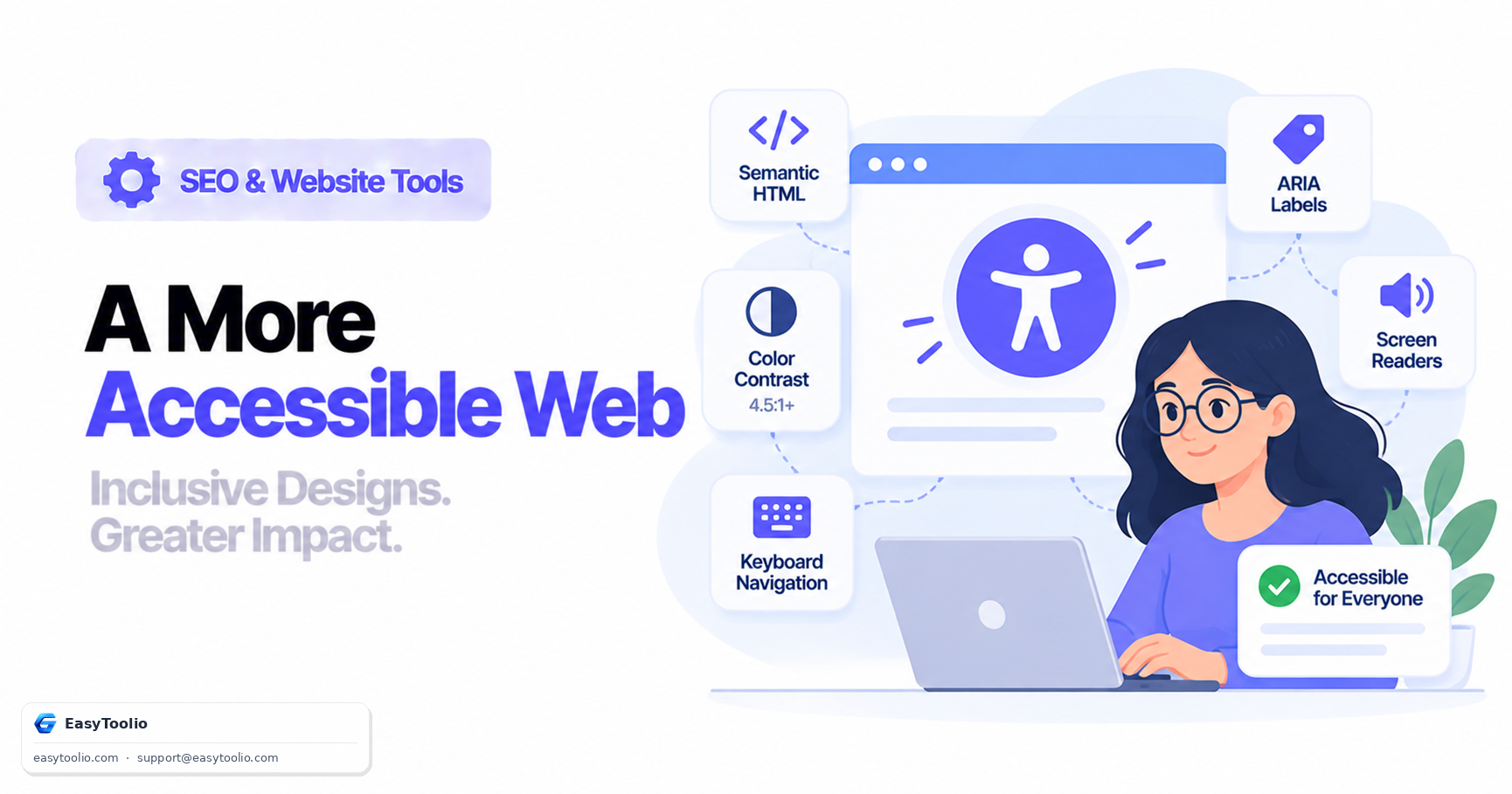
Accessibility isn't a checkbox feature — it's whether a person using a screen reader, navigating by keyboard only, or with low vision can actually complete the same tasks a sighted mouse user can. The Web Content Accessibility Guidelines (WCAG), now at version 2.2, are the W3C's global standard for what that requires in practice, and they're the benchmark most accessibility laws and procurement requirements point to.
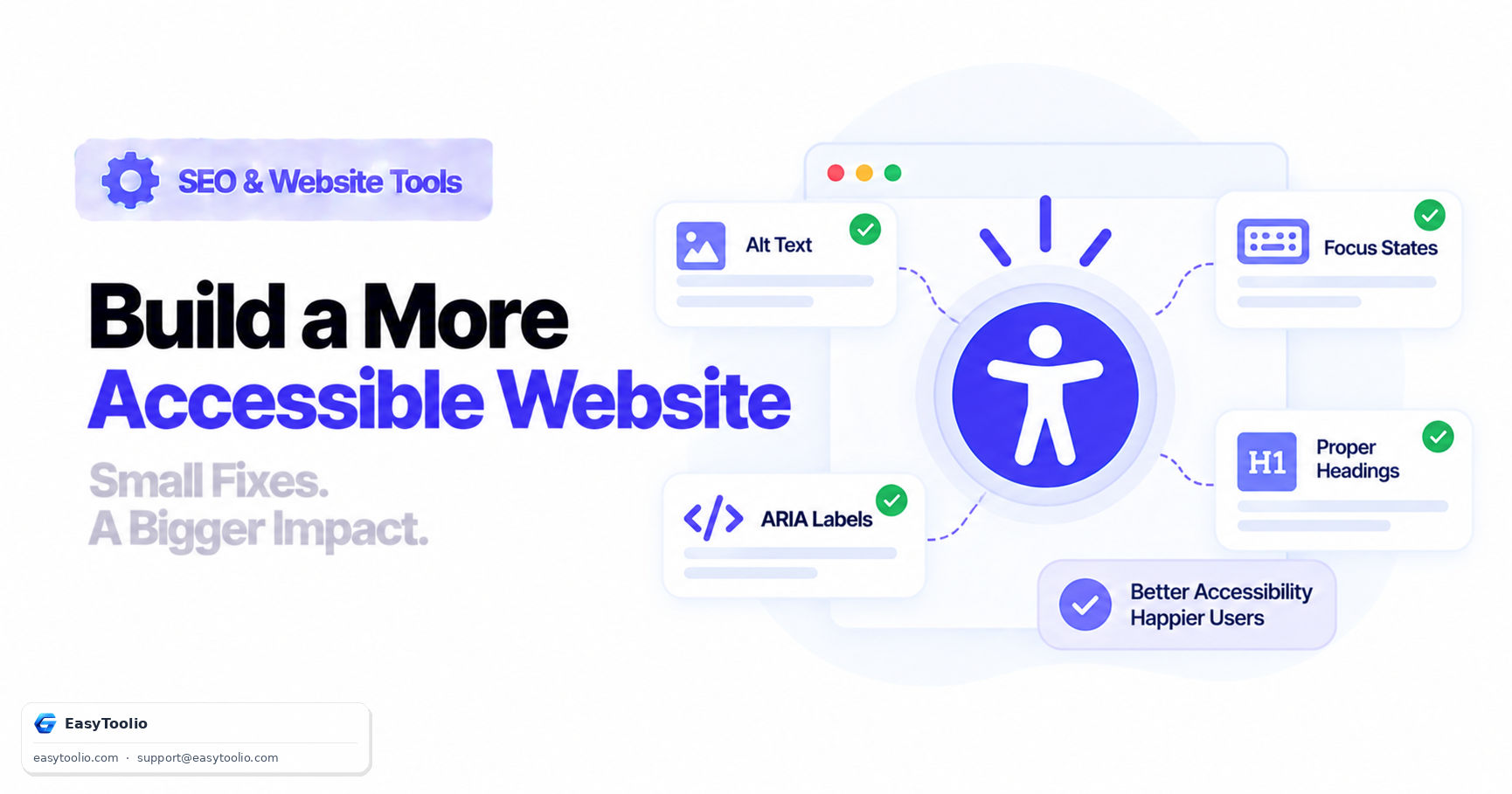
Direct answer: WCAG 2.2 is organized around four principles, summarized as POUR — content must be Perceivable, Operable, Understandable, and Robust. At the widely-targeted Level AA conformance tier, the practical requirements include: meaningful alt text on informative images, a minimum 4.5:1 contrast ratio for normal body text (3:1 for large text), full functionality via keyboard alone, visible focus indicators, and form fields with properly associated labels. Automated scanners catch a meaningful share of issues — things like missing alt text or insufficient contrast — but a large portion of WCAG success criteria (logical reading order, meaningful focus order, whether ARIA is used correctly) require manual testing, including with an actual screen reader.
The Four POUR Principles
- Perceivable — Information must be presented in ways users can perceive, regardless of sense. This covers alt text for images, captions for video, and sufficient color contrast so text isn't lost against its background.
- Operable — All functionality must be usable via keyboard alone, with enough time to complete actions, and without content that could trigger seizures (like fast, high-contrast flashing).
- Understandable — Text should be readable, and interfaces should behave predictably — form errors clearly explained, navigation consistent across pages.
- Robust — Content must work reliably across current and future assistive technologies, which in practice means using standard, valid HTML and correct ARIA roles rather than custom markup that only works in one browser or screen reader.
Core WCAG 2.2 Level AA Checklist
| Requirement | WCAG criterion | What it requires | Example |
|---|---|---|---|
| Image alt text | 1.1.1 Non-text Content | Descriptive alt for meaningful images; alt="" for purely decorative ones |
<img src="chart.png" alt="Sales growth, 2024 to 2026" /> |
| Color contrast | 1.4.3 Contrast (Minimum) | 4.5:1 for normal text, 3:1 for large text (roughly 18pt+ or bold 14pt+) | #595959 text on a #FFFFFF background |
| Keyboard focus visibility | 2.4.7 Focus Visible | A clearly visible focus indicator when tabbing through the page | button:focus-visible { outline: 2px solid #2563eb; } |
| Form labels | 3.3.2 Labels or Instructions | Every input has a programmatically associated label | <label for="email">Email</label><input id="email" type="email"> |
| Target size | 2.5.8 Target Size (Minimum) | Interactive targets sized large enough to tap reliably (new in 2.2) | Buttons and links sized well above a tiny hit-area |
Use Semantic HTML Before Reaching for ARIA
The single most common accessibility mistake is building interactive controls out of generic <div> elements with click handlers, then trying to patch in accessibility with ARIA attributes after the fact. Native HTML elements come with keyboard behavior, focus handling, and screen reader semantics built in — recreating that from scratch with ARIA is difficult to get fully right.
<!-- Avoid: a div is not keyboard-focusable or announced as a control by default -->
<div onclick="submitForm()">Submit</div>

<!-- Prefer: native button — keyboard accessible and correctly announced out of the box -->
<button type="submit">Submit</button>

<!-- When you genuinely need a custom widget, ARIA fills the gap native HTML can't cover -->
<button aria-expanded="false" aria-controls="menu-dropdown">Toggle Menu</button>
The general rule (often summarized as "no ARIA is better than bad ARIA") is: use the native semantic element if one exists for what you're building, and only add ARIA roles/states when there's genuinely no native equivalent — a custom dropdown, a tab panel, a live-updating status region.
Why Automated Scanners Aren't Enough
Automated tools are good at catching objective, structural issues: missing alt attributes, insufficient color contrast, missing form labels, invalid ARIA attribute values. They're much weaker at judging things that require human or contextual judgment: whether alt text is actually descriptive rather than just present, whether the reading order makes sense when linearized for a screen reader, or whether a custom widget's keyboard behavior matches user expectations. A page can pass every automated check and still be genuinely unusable with a screen reader — automated scanning should be a first pass, not the final word.
Frequently Asked Questions
What's the difference between WCAG Level A, AA, and AAA? Level A covers the most basic accessibility barriers. Level AA is the level most legal standards and organizational policies require — it's the practical target for most sites. Level AAA includes stricter criteria (like higher contrast ratios or sign-language alternatives for video) that aren't always achievable for all content types, so it's treated as an enhancement rather than a baseline.
Does accessibility work also improve SEO? Indirectly, yes — many accessibility practices (descriptive alt text, semantic heading structure, clear link text, logical document structure) overlap directly with what search engines rely on to understand a page.
Is WCAG 2.2 legally required? Requirements vary by jurisdiction and sector. Many accessibility laws and regulations reference WCAG (often at the AA level) as the technical standard for compliance, even where the law itself doesn't use the WCAG name directly.
Can I rely entirely on an accessibility overlay widget? Overlay widgets that claim to auto-fix accessibility issues typically only catch a narrow slice of surface-level problems and can't fix structural issues like poor keyboard navigation or incorrect ARIA usage baked into the underlying markup. They're not a substitute for building accessible markup in the first place.
What's the fastest way to find major issues on an existing site? Run an automated scan first to catch the objective issues, then try navigating a few key pages using only the keyboard (Tab, Shift+Tab, Enter, Space, arrow keys) — that alone surfaces a large share of the most damaging problems, like unreachable interactive elements or missing focus indicators.
Run an automated accessibility audit with our website accessibility checker, check hex color values and contrast pairs with the color picker, clean up and inspect markup with the HTML formatter, and review document metadata via the meta tag analyzer.