
Laptop batteries don't fail suddenly — they degrade quietly for months, losing a little capacity here, dropping a bit more there, until one day the two-hour battery you remember buying barely survives a lunch break. A periodic check catches that decline early, while it's still just a mild inconvenience rather than a dead battery on the day you needed it most.
Direct Answer: A laptop battery health check reports your battery's current maximum capacity as a percentage of its original design capacity, along with a cycle count (one full charge-discharge cycle, regardless of how it was split across multiple partial charges) — a healthy battery under a year or two old should show 90%+ of design capacity, while anything under 80% signals meaningful degradation worth planning around. Pairing this with a device information check, which reports your laptop's actual installed CPU, RAM, storage, and other hardware, confirms the specs you were promised (by a seller, or a warranty claim) match what's genuinely installed, which matters especially when buying secondhand or verifying an in-warranty repair.
How Battery Degradation Actually Works
Lithium-ion batteries — used in virtually all modern laptops — lose capacity gradually through normal chemical aging, independent of whether you're actively using the laptop:
- Charge cycles are the primary degradation driver: one full cycle equals a cumulative 100% of capacity discharged and recharged, whether that happened in one sitting or across many partial top-ups. Most modern laptop batteries are rated for somewhere between 500 and 1,000 full cycles before falling to roughly 80% of original capacity.
- Heat accelerates degradation — a laptop routinely run hot (heavy gaming, poor ventilation, charging while under heavy load) ages its battery faster than one kept cooler.
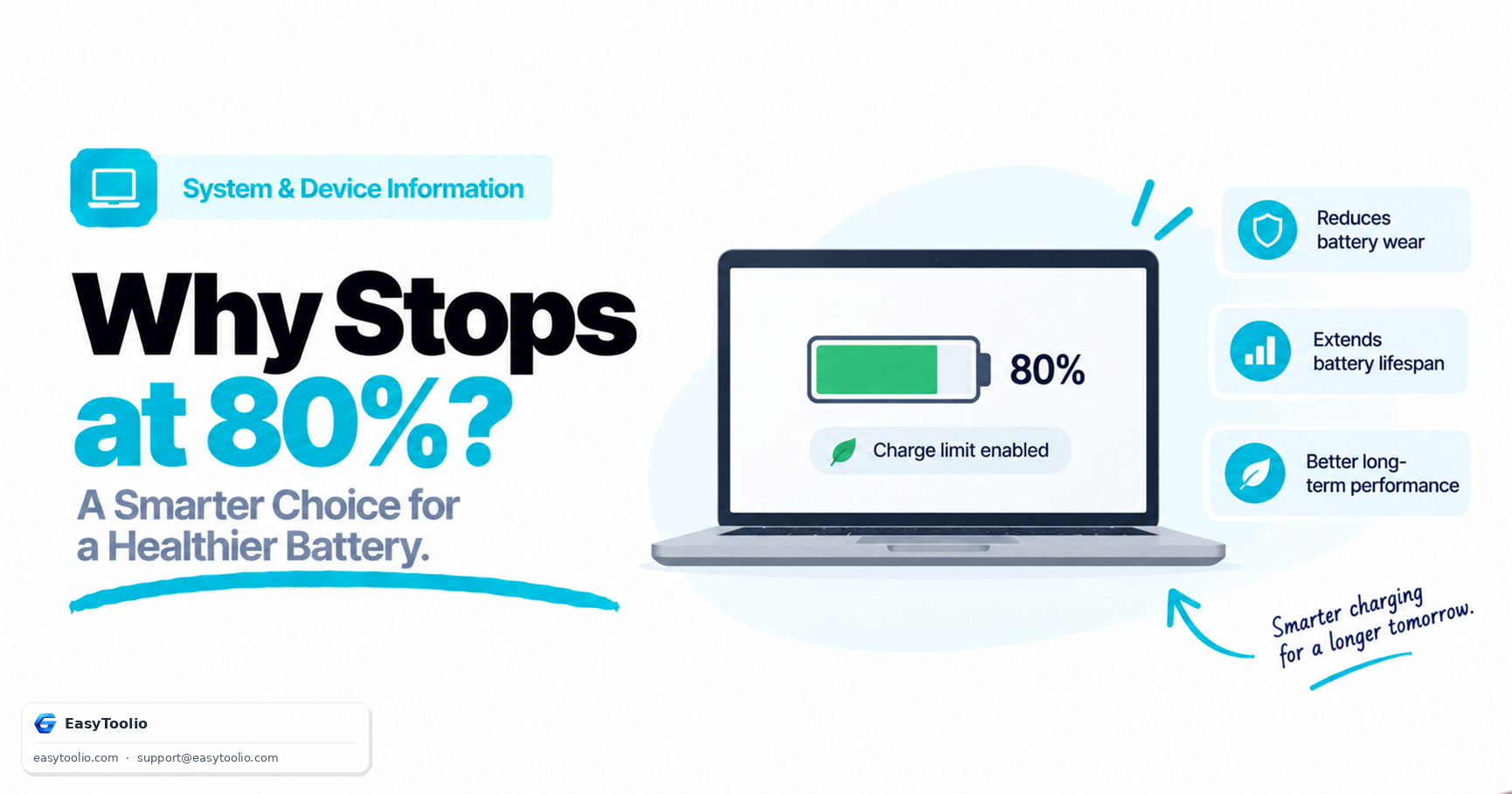
- Keeping a battery at 100% charge for extended periods also accelerates chemical aging slightly compared to keeping it in a more moderate charge range, which is why some laptops now offer a "battery health" charge limit option (e.g., capping at 80%) for units that stay plugged in most of the time.
Reading Your Battery Health Report
Run our battery health test and interpret the two key figures it reports:
| Metric | What It Means | Healthy Range |
|---|---|---|
| Capacity (current vs. design) | Current maximum charge capacity as % of what the battery could hold new | 90%+ (like new), 80-89% (normal wear), under 80% (meaningful degradation) |
| Cycle count | Total full charge-discharge cycles accumulated | Compare against manufacturer's rated cycle life (often 500-1,000) |
A battery reporting 75% of design capacity after 400 cycles on a battery rated for 800 cycles is degrading somewhat faster than expected and worth monitoring more closely; the same 75% reading after 900 cycles on that same battery is roughly in line with normal expected wear.
What to Do at Each Degradation Stage
- 90-100% capacity: No action needed — this is normal for a battery under roughly 1-2 years of typical use.
- 80-89% capacity: Still fully usable, but start noticing whether real-world runtime has noticeably shortened; a good point to moderate heat exposure and charging habits if you want to slow further decline.
- Under 80% capacity: Runtime will be noticeably shorter than when new; if the laptop is otherwise in good shape and worth keeping, this is the point to start researching battery replacement, ideally before it degrades further and leaves you without warning during travel or important use.
- Under 50% capacity or erratic behavior (sudden shutdowns, wildly inaccurate percentage readings): treat as a near-term replacement priority, since a battery this degraded can fail unpredictably.
Why Device Information Verification Matters Separately
A battery health check tells you about wear over time; a device information check tells you what's actually installed right now — a different but equally practical concern, especially in two specific situations:
- Buying a used or refurbished laptop. Listings sometimes advertise specs that don't match what's actually inside, whether from an honest mistake, an unnoticed component swap, or deliberate misrepresentation. A device information checker reads the actual installed CPU model, RAM amount and speed, storage type and capacity, and other hardware directly from the system.
- After a warranty repair or upgrade. If a laptop was serviced under warranty (say, a RAM upgrade or motherboard replacement), verifying that the correct components were actually installed protects you against a technician's error or a downgraded replacement part.
Run our device information checker and compare the reported specs line by line against the listing or invoice — CPU model and generation, exact RAM capacity, storage type (checking specifically that an "SSD" claim isn't actually a slower eMMC or hybrid drive), and connected peripheral device IDs.
A Simple Periodic Routine
For an owner who wants a lightweight, recurring health habit rather than a one-time check:
- Every 3-6 months: run the battery health test and log the capacity percentage and cycle count somewhere simple (a notes app is enough) to track the trend over time, not just a single reading.
- Immediately after any purchase, trade, or repair: run the device information checker to confirm installed specs match what was promised, while you still have recourse to raise a dispute.
- Before any warranty claim or resale: run both checks together — a documented capacity reading strengthens a warranty claim for battery replacement, and a device information printout gives a prospective buyer confidence in your listing's accuracy.
Frequently Asked Questions
Is it normal for battery capacity to drop even if I barely use my laptop?
Yes, to a smaller degree — lithium-ion batteries age chemically over time even with minimal cycling, though heavy use accelerates the decline considerably more than age alone.
Can I do anything to slow down battery degradation?
Avoiding extended periods at 100% charge or fully depleted, keeping the laptop cool during heavy use, and using a manufacturer-provided battery charge limit feature (if available) are the main practical levers, though some gradual degradation over years is unavoidable with current battery chemistry.
Does a low battery health percentage mean the laptop is unsafe to use?
Not on its own — reduced capacity mainly means shorter runtime, not danger. However, a battery that's swelling, unusually hot, or triggering unexpected shutdowns should be treated as a safety concern and assessed by a professional promptly.
Why would a device information check show different specs than what Windows or macOS displays in system settings?
Usually it doesn't, but discrepancies can occur when a system misreports due to driver issues, or when a component (like RAM) is running below its rated speed due to a compatibility or configuration issue — this is exactly the kind of mismatch a detailed device information check is meant to surface.
How often should I actually replace a laptop battery?
There's no fixed calendar interval — replacement is better judged by capacity percentage and real-world runtime than by age alone. Many people replace a battery once it drops meaningfully below 80% capacity and the shorter runtime becomes a genuine daily inconvenience.
References: Battery University (Cadex Electronics) technical guidance on lithium-ion battery aging and cycle life; general manufacturer battery health documentation (Apple, Dell, Lenovo, HP support resources).